spam blockersanti spam
Valu-Uploader icon

Valu-Uploader — drop it in a folder,
it lands in the cloud.

★ New · Beta Mac · Windows · Linux

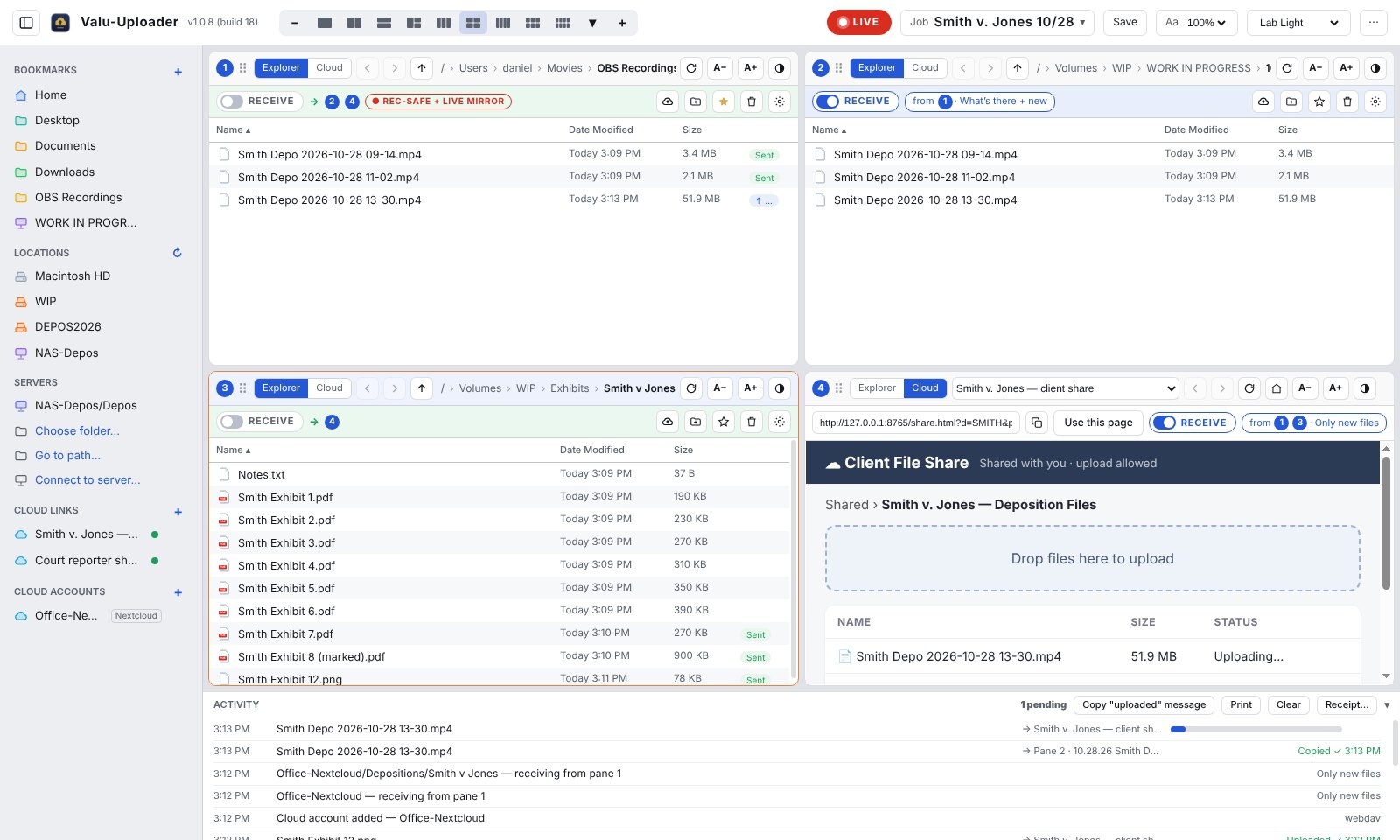
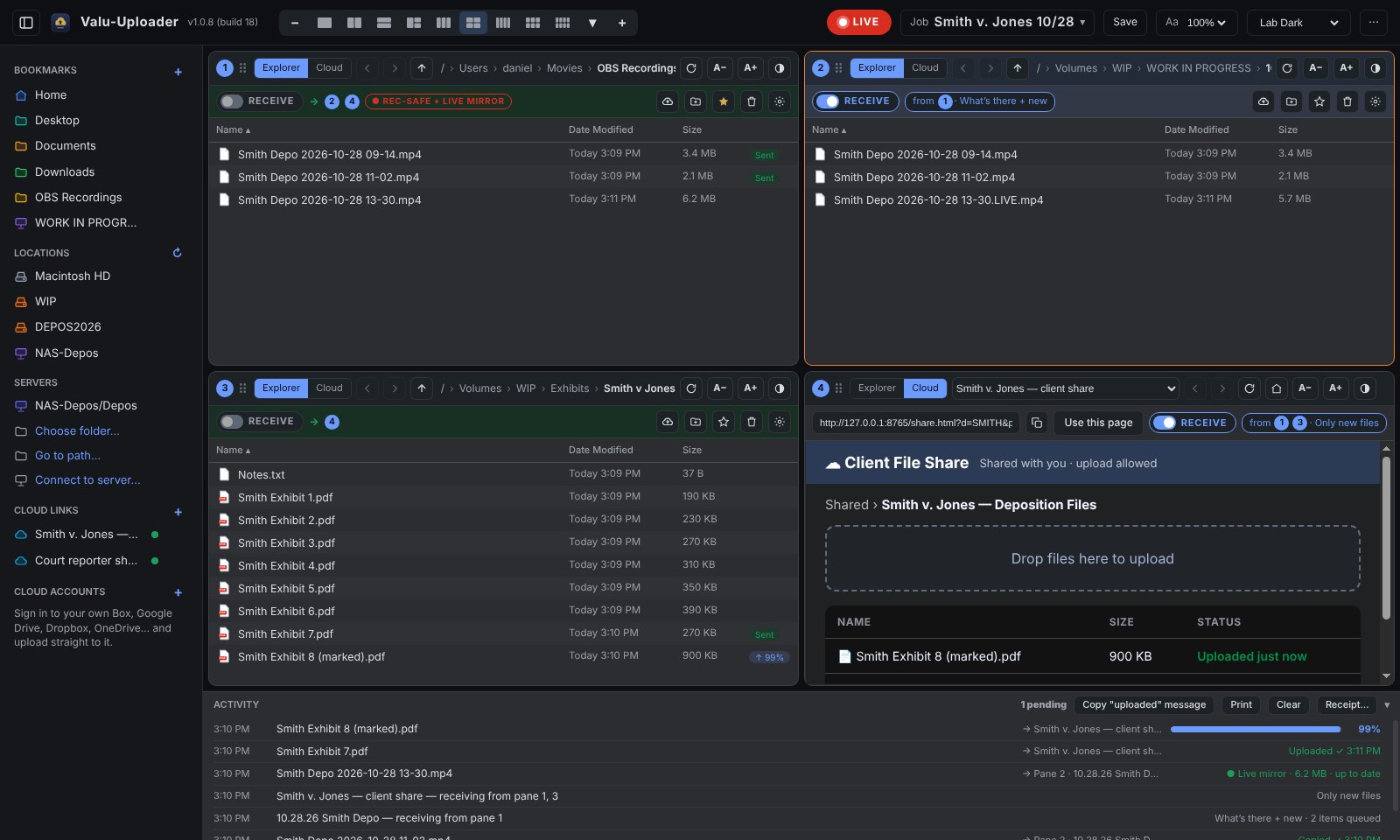
Set up to eight panes — folders, network shares, client share links and your own cloud accounts — and tell each one where to take files from. From then on every new file is delivered by itself: recordings, exhibits, transcripts. Live progress, a receipt for every delivery, and a playable copy of a recording even if the recording computer loses power.

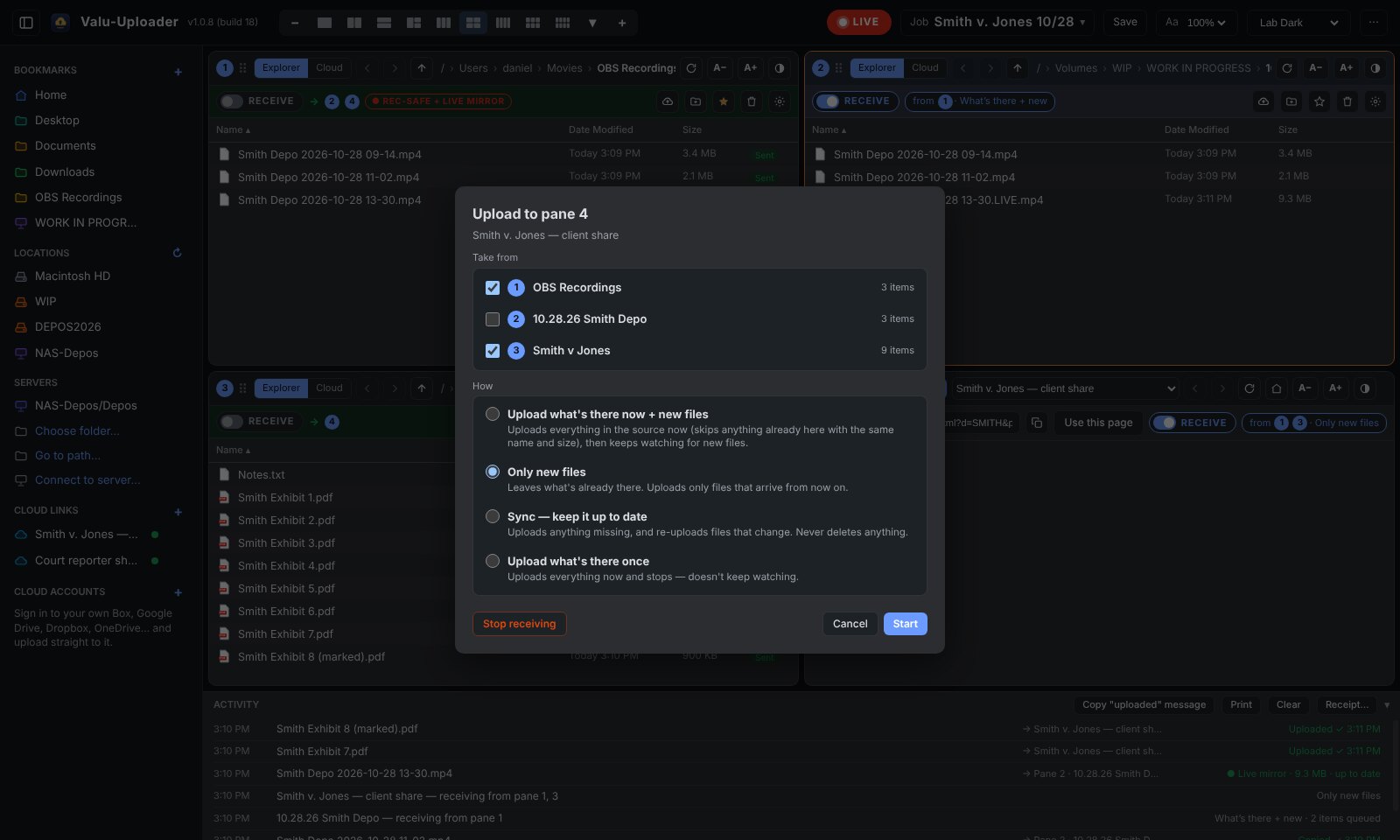
Four panes: OBS recordings, a NAS folder, exhibits and a client share link, with uploads in progress
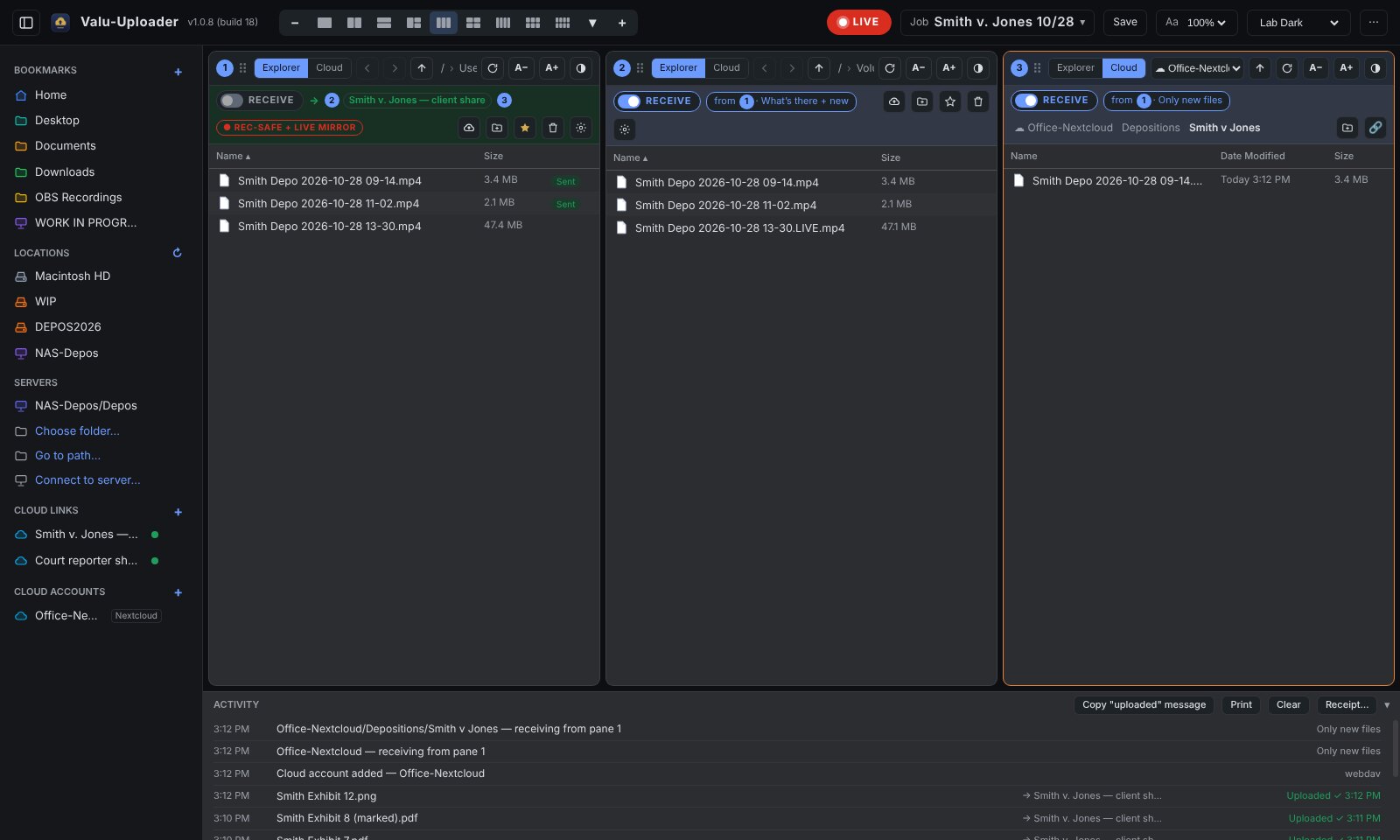
Recordings go to the NAS and the client's share link; exhibits follow them — all by themselves

Everything it does for you

Built for legal video, useful for anyone who hands files to clients: photographers, editors, court reporters, post houses, agencies.

📥

RECEIVE — one switch

Turn RECEIVE on in the pane that should get the files and tick the panes it takes from. Four ways: what's there + new, only new files, Sync (re-sends changed files, never deletes) or copy once.

🔗

Client share links — no account needed

Paste the link you were sent (Box, Nextcloud, Google Drive, Dropbox, ShareFile…). Valu-Uploader puts files into the page for you, just like dragging them in by hand. Email-scanner links (Mimecast, Outlook) are unwrapped automatically.

☁️

Your own cloud accounts

Sign in once in your browser to Box, Google Drive, Dropbox or OneDrive — or add Nextcloud / WebDAV, SFTP and S3. Browse the account in a pane, make folders, copy share links, and upload straight into it.

🔴

Power-loss-safe recordings

While OBS (or any recorder) is still recording, a .LIVE copy grows in the receiving folder every few seconds. If the recording computer dies, that copy plays up to the moment it stopped (Hybrid MP4 or MKV). When the recording ends, the full checked copy replaces it.

🎬

Never sends half a video

Video files wait until the recorder has closed them and nothing has changed for 10 seconds — paused recordings are never sent early.

🧭

Up to 8 panes

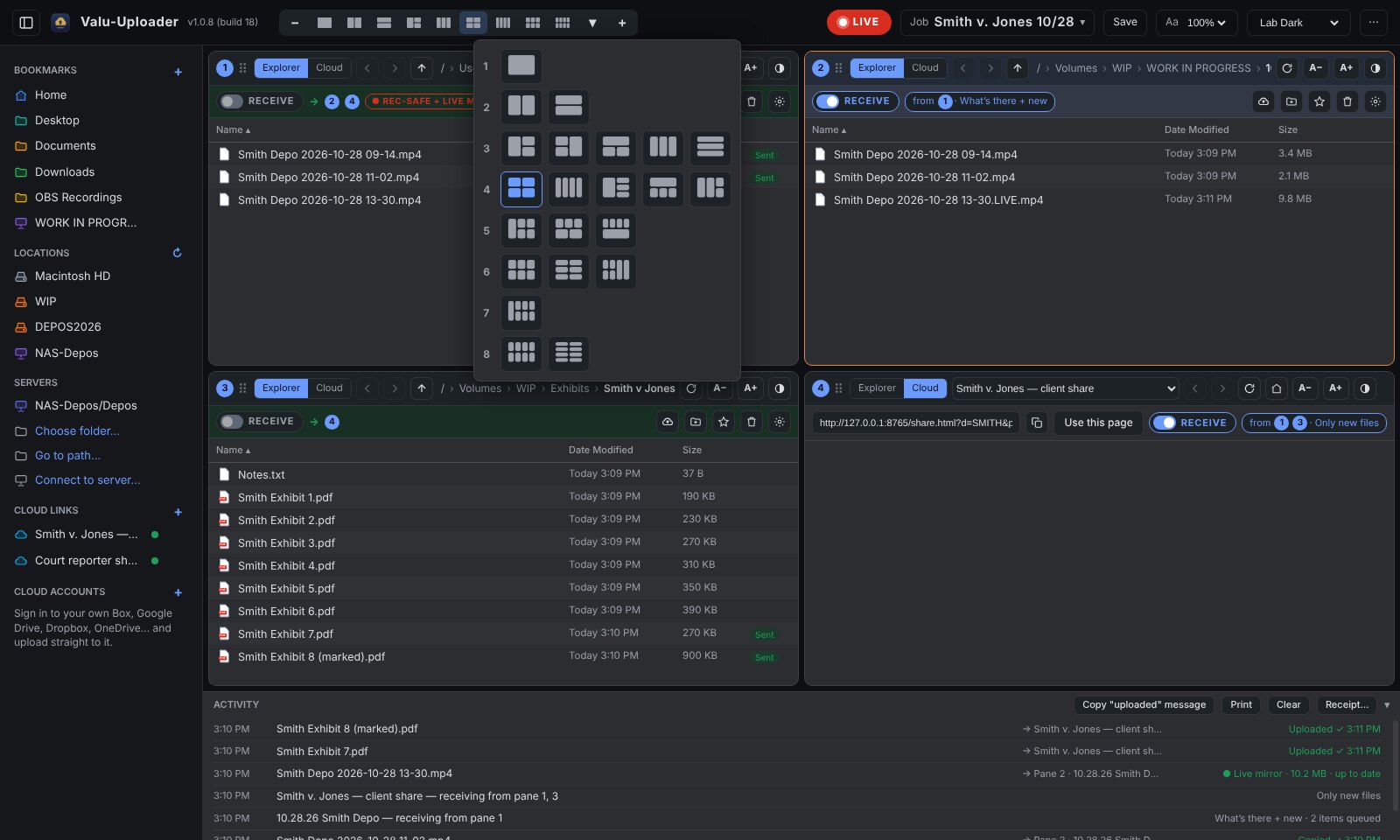
22 arrangements — two side by side, three or four columns, big-left + quad, 8 in a grid… Drag the gaps to resize. Each pane has its own number, text size and theme.

💾

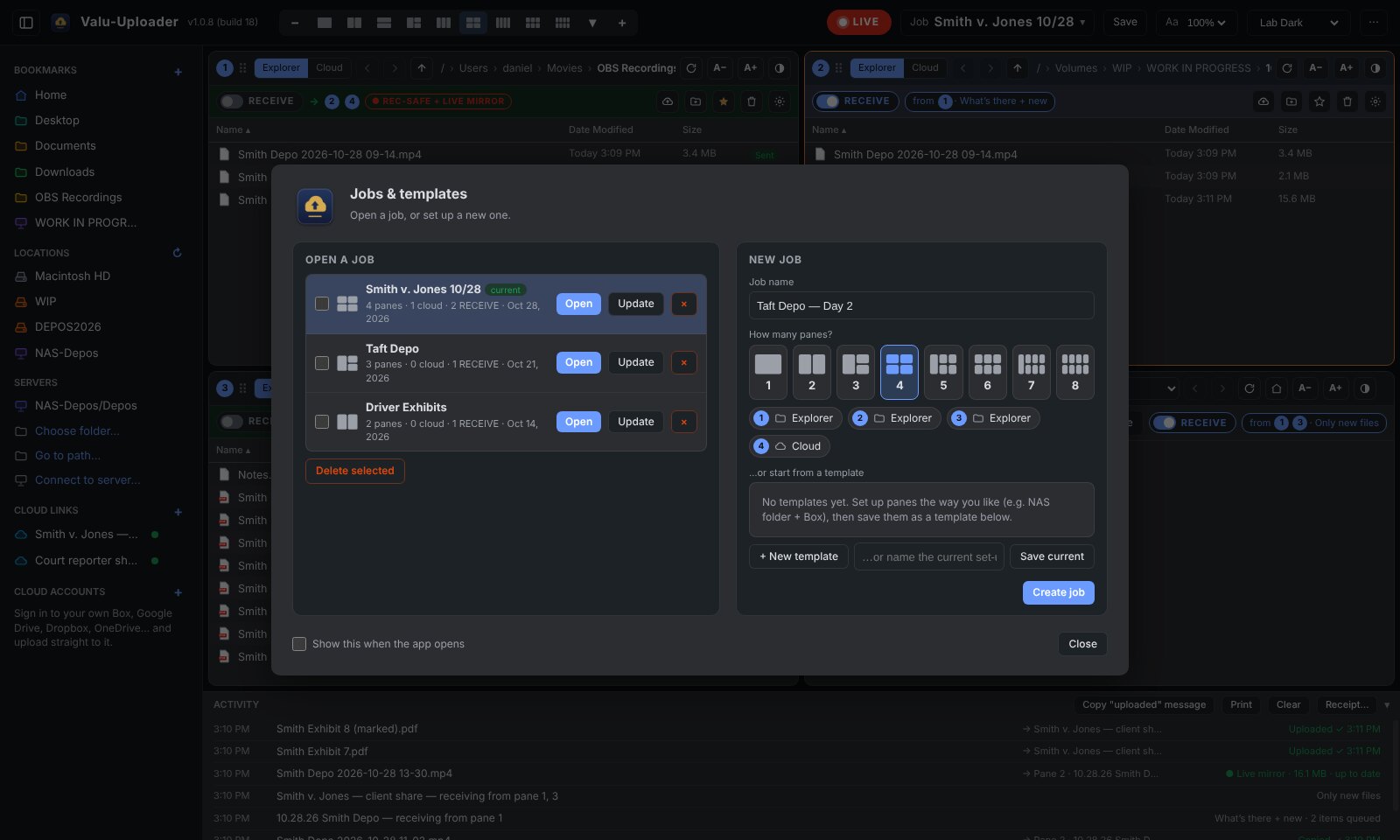
Jobs & templates

Save the whole set-up as a job (⌘/Ctrl S) and open it again next time. Templates ask only for what changes — usually the client's share link.

📈

Live progress & receipts

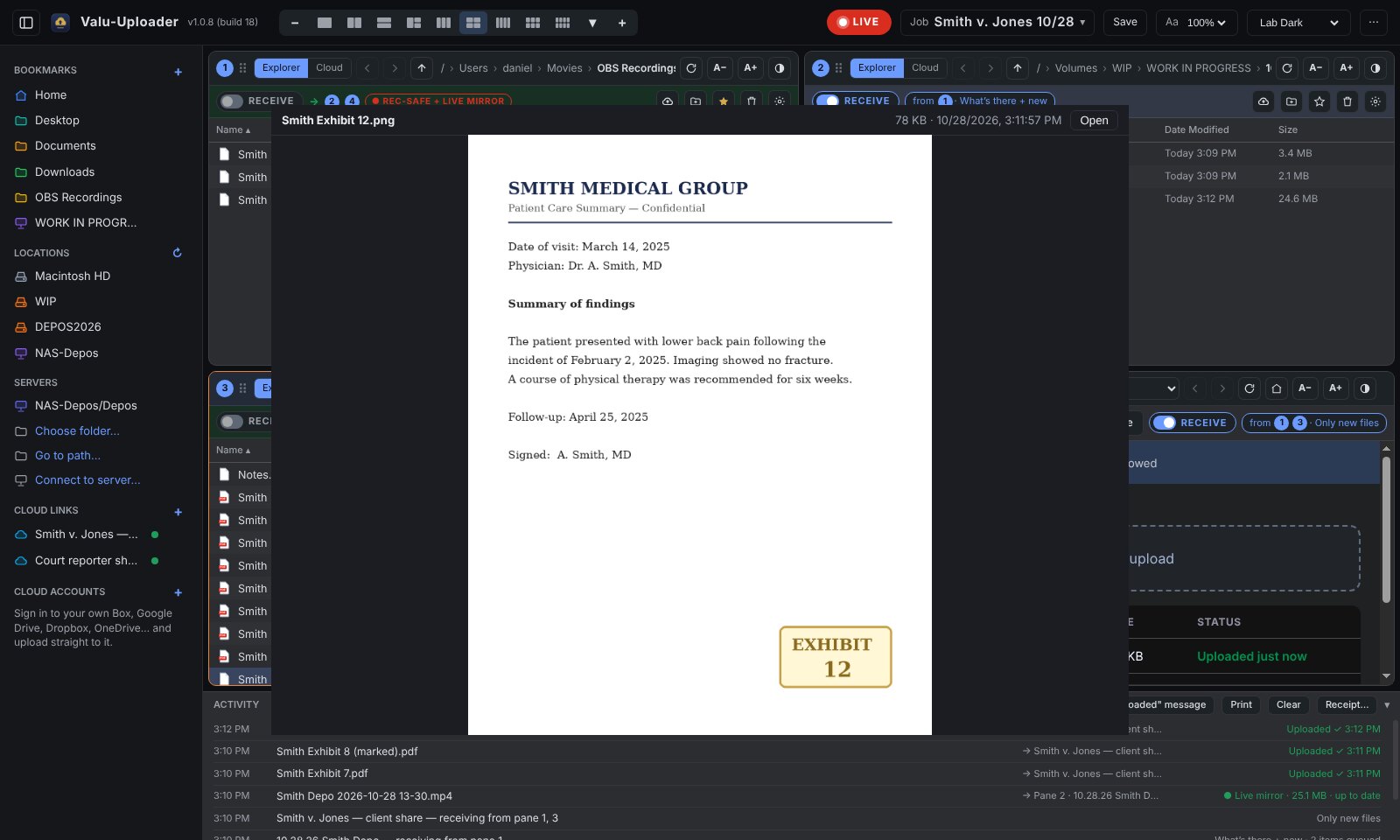
Every upload shows a progress bar and “Uploaded ✓” with the time. Copy a ready-made “files uploaded” message for Zoom chat or email, or make a PDF receipt with a SHA-256 checksum for every file.

🗂️

A real file manager

Copy, cut, paste, duplicate, rename, move between panes, drag in and out. Nothing is ever overwritten — a clash becomes “name copy”. Lists update the moment another app adds, renames or removes a file.

👀

Space bar preview

Select a file and press space: Quick Look on the Mac, a preview window on Windows and Linux — pictures, PDFs, video, audio and text. ↑ / ↓ move through the folder.

🌐

Network shares that reconnect

Connect to SMB servers with a saved login. If a share drops mid-job it reconnects on its own, and copies to shares are written under a hidden name and checked, so nobody sees a half-copied file.

🔐

Private and safe

Passwords and sign-ins are kept by your system (Mac Keychain, Windows DPAPI, Linux keyring) and stay signed in after updates. Deleting a file here never touches the cloud copy. Whole drives and system folders can't be sent by mistake.
Step-by-step guides

1Set up your panes

  1. Pick a layout from the header — or ▾ for all 22 — or use − / +. Every pane shows its number.
  2. Each pane is Explorer (a folder, a drive or a network share) or Cloud (a share link or one of your cloud accounts).
  3. Click a bookmark, location or server in the sidebar to open it in the active pane (orange border). Drag the gaps between panes to resize them.

2Add the client's share link

  1. Switch a pane to Cloud, paste the link into its address bar and press Enter.
  2. Sign in on the page if it asks, open the exact folder, then press Use this page.
  3. Saved logins: ⋯ next to the link → Edit → user name and password, filled in only on the sites you allow.
The copy button next to the address bar copies the link — handy for pasting into a browser or an email.

3Switch RECEIVE on

  1. In the pane that should get the files, press RECEIVE.
  2. Tick the panes it takes from (by number) and choose how: What's there + new, Only new files, Sync or Copy once. Press Start.
  3. The receiving pane shows from 1 3; the source panes show → 2. Click the chip to change it.

4Recordings and Live Mirror

  1. Point the source pane at your recording folder (e.g. OBS's). For best results set OBS to Hybrid MP4 or MKV.
  2. Give a folder pane RECEIVE from it (a NAS or a second drive). While recording, name.LIVE.mp4 grows there every few seconds — automatically.
  3. When the recording stops, the finished file is copied, checked, and replaces the .LIVE copy. Share links and cloud accounts get the finished file only.
⚙ on the source pane → Recording folder marks it REC-SAFE; untick Live mirror there if you don't want the .LIVE copies.

5Add your own cloud account

  1. Press + next to CLOUD ACCOUNTS. The first time, Valu-Uploader installs its cloud engine (rclone, free and open source).
  2. Box, Google Drive, Dropbox, OneDrive: your web browser opens — sign in and press Allow. Nextcloud / WebDAV, SFTP, S3: type the server and login.
  3. Click the account to open it in a pane, double-click into the folder you want, then switch RECEIVE on.

6Jobs and templates

  1. Save (or ⌘/Ctrl S) keeps the panes, links, RECEIVE settings, layout and sizes as a job.
  2. Job ▾ opens the start screen: open, update or delete jobs, or start a new one with a number of panes or from a template.
  3. In a template, mark the panes that change per job with Ask — a new job then asks only for those.

7Tell everyone it's there

  1. Copy "uploaded" message (Activity bar) copies a list of everything delivered since last time, grouped by destination — paste it into Zoom chat or an email.
  2. Receipt… makes a PDF for a time range: every file, size, time, destination and SHA-256 checksum.

8LIVE on and off

  1. LIVE (red) delivers as files arrive. Turn it OFF and new files wait — the menu-bar / tray icon turns grey.
  2. Turn it back on and it catches up with everything not yet sent. Closing the window keeps Valu-Uploader running in the menu bar / tray.

Mac, Windows and Linux

Valu-Uploader is in beta. Signed and notarized for Mac (Apple Silicon), a signed installer for Windows 10 & 11, and a .deb for Ubuntu, Mint and Debian.

Questions

Do I need an account with the client's cloud?
No. A share link that lets you upload is enough — Valu-Uploader uses the page the same way you would. Add a cloud account only for clouds that are your own.
Can it delete files in the cloud?
No. Deleting a file in a pane only moves it to this computer's Trash / Recycle Bin. Cloud copies are never touched.
What if a file with the same name is already there?
In folders nothing is overwritten — the new one becomes “name copy”. Sync replaces only files that changed.
A site doesn't take the files.
Valu-Uploader switches that link to the page's own upload button by itself and says so in Activity. Nextcloud always uses it.
Is my password stored?
Only if you save it, and only in your system's secure store (Keychain, DPAPI or the Linux keyring). If that isn't available, nothing is saved.
Help?
Email holmstockd@danielholmstock.com.