Why Valu-Rec instead of OBS?
OBS is excellent, free software, and many videographers use it. But it was built for streaming and gaming. To use it for a deposition you build scenes, add plugins for separate files, route audio with a second app, and hope nobody forgets a step. Valu-Rec does one job: record a remote deposition the way agencies and courts expect, with nothing to set up the morning of.
| What a legal videographer needs | Valu-Rec | OBS |
|---|---|---|
| Witness, exhibits and the finished Stage as separate files at the same time | Built in, one tick box each | Needs a plugin and extra setup for each file |
| Date and time burned in, from internet time, with one-click time zones | Built in | Text source plus a script or plugin; uses the computer clock |
| On and off the record times, logged and saved with the job | Automatic | Not available |
| Your mic mutes when you mute in Zoom, Teams or Webex | Automatic | Not available |
| Record only Zoom's sound, so system dings and other apps stay out | One menu | Possible with per-app capture setup |
| Files that survive a crash or power cut | Every MP4, always | Only if you record MKV and convert later |
| A second copy on another drive while recording (PARANOID mode) | Built in | Not available |
| Send the meeting sound to HDMI backup recorders | Built in, with a level bar | Needs Loopback, VoiceMeeter or similar |
| Agency-ready settings: CBR, 1080p, key frame every second | One button | Manual, many screens |
| Mouse pointer kept out of the recording | On by default | Per source setting |
| Exhibit window holds its last picture when the share stops | Automatic | Shows whatever is in the window, often black |
| Save a whole setup as a preset per agency | Save Preset / Open Preset | Scene collections and profiles |
OBS still wins for live streaming, complex scenes and plugins. Valu-Rec is for recording a meeting cleanly and safely, every time.
Install
- Download the installerOpen the download folder and get Valu-Rec-Setup-version.exe.
- Run itThe installer is signed by Daniel Holmstock. Choose where to install, then open Valu-Rec.
- That's itWindows asks nothing else. Valu-Rec uses your graphics card (NVIDIA, AMD or Intel) for recording, so the computer stays cool and quiet.
Needs Windows 10 (2004 or newer) or Windows 11. Per-app sound like "Zoom only" needs Windows 10 build 20348 or Windows 11.
- Download the disk imageOpen the download folder and get Valu-Rec-version-arm64.dmg.
- Drag Valu-Rec to ApplicationsOpen the .dmg and drag the app into Applications. It is signed and notarized by Apple.
- Allow the permissions it asks forThe first time, macOS asks for Screen Recording (to see Zoom and your screens), Microphone, and Camera if you use a capture card. For "Mute My Mic when I mute in the meeting", also allow Accessibility and Automation. All are in System Settings › Privacy & Security.
- Quit and reopen oncemacOS only applies Screen Recording after a restart of the app.
Needs macOS 13 Ventura or newer on an Apple silicon Mac (M1 or later).
Quick start: your first deposition
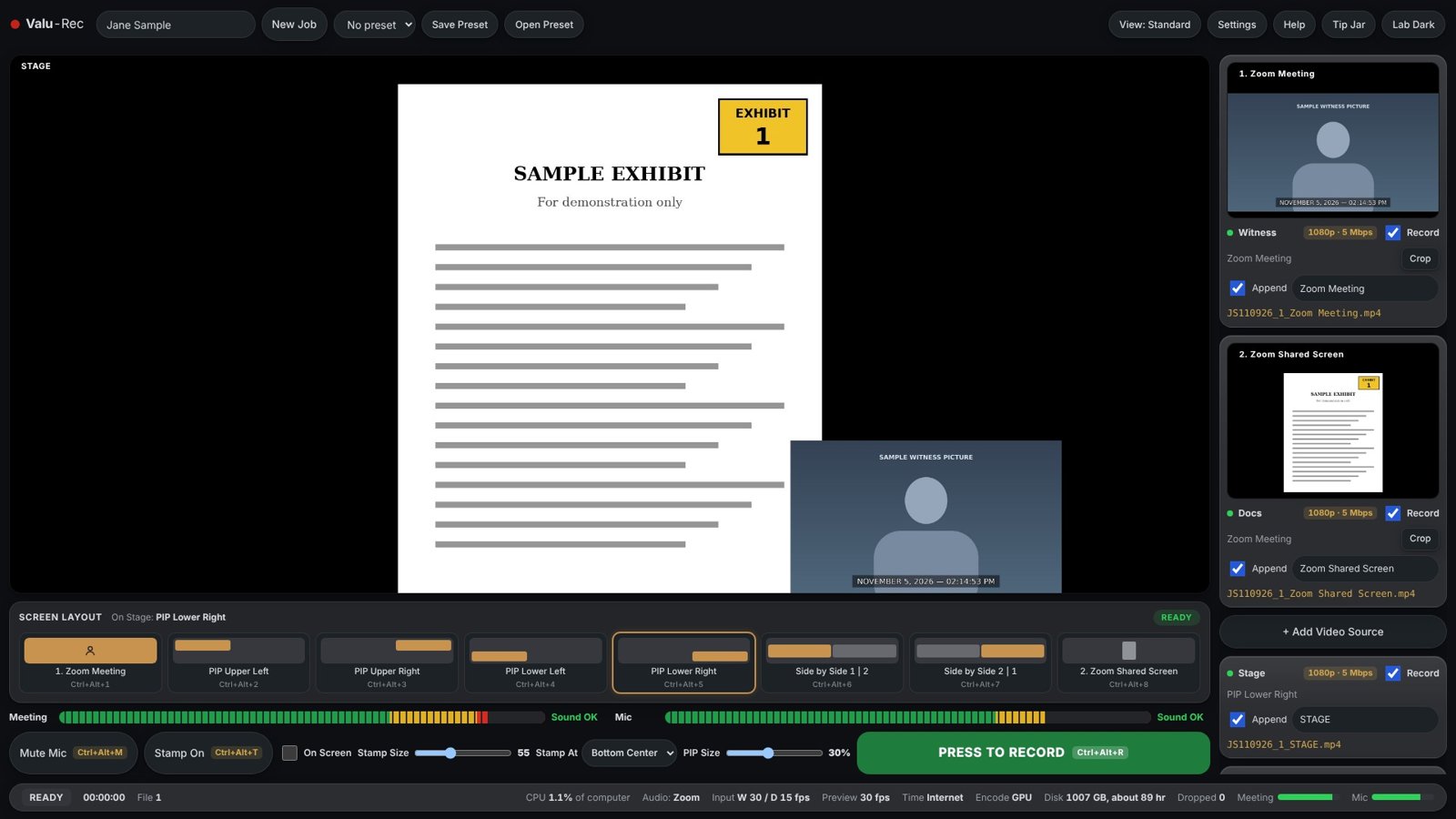
- Type the master nameTop left. It names the job folder and every file, for example
JS110926_1_WIT.mp4. - Choose Source 1, the witnessClick the first preview and pick the Zoom, Teams or Webex meeting window. Source 1 is always the picture that goes in the corner.
- Choose Source 2, the exhibitsClick the second preview and pick the shared screen or the monitor you present from. If the share stops, Valu-Rec holds the last picture instead of going black.
- Check the soundIn the Audio box, set Meeting Audio to Zoom only (or Teams, Webex) and pick your mic. Both bars should move. Valu-Rec picks the meeting app for you when you choose its window.
- Pick a layoutFull witness, picture-in-picture in any corner, or side by side.
- Press to RecordThe big green button, or Ctrl+Alt+R (Control+Option+R on Mac). Press again to go off the record.
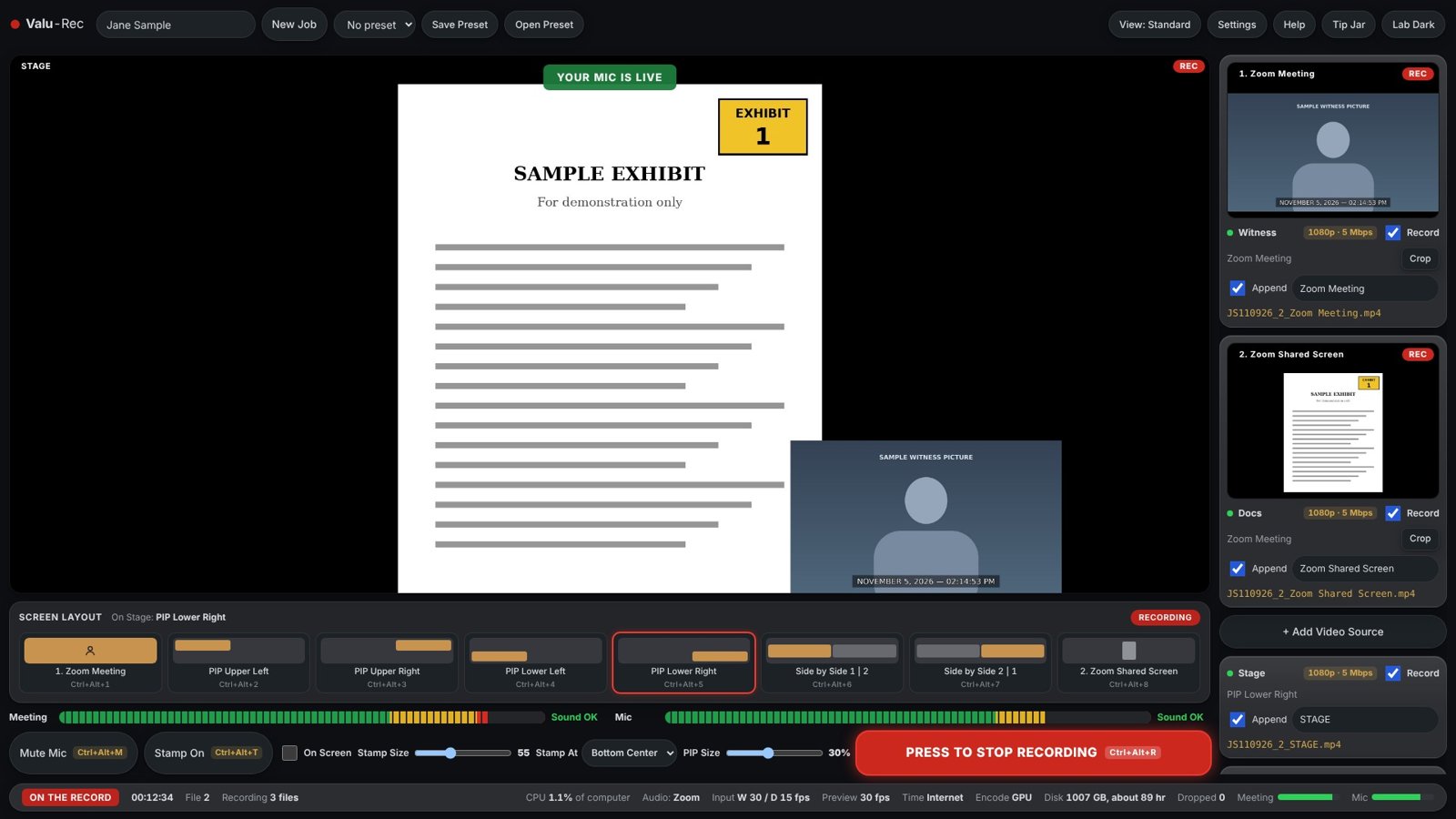
What you get
A folder for the job with one MP4 per source you ticked Record on: the witness, the exhibits, and the Stage (the finished picture-in-picture). Each break starts a new numbered set of files, and a Times.txt lists every on and off the record time.
Layouts and hotkeys

- Click a layout or press its hotkey, Ctrl+Alt+1 to 8. Hotkeys work while Zoom is in front, so a Stream Deck can drive everything.
- Resize the corner picture with the PIP Size slider, or double-click it on the Stage and drag its corner.
- Crop any source to cut off Zoom's toolbars or a second person's tile.
- Up to four sources. Add a camera, a capture card or another window with + Add Video Source. Source 1 is always the corner picture; pick which other source is the background.
Audio
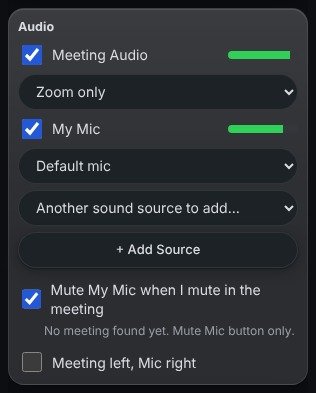
- Meeting Audio: choose Zoom only (or Teams, Webex, your browser for Google Meet) so only the meeting is recorded. All computer sound records everything you hear.
- My Mic: your own voice, for when you go on the record.
- Mute My Mic when I mute in the meeting: Valu-Rec watches Zoom, Teams and Webex and mutes your mic in the recording the moment you mute in the meeting. No second button to remember.
- Add Source: mix in another device, like an audio interface or Loopback.
- Meeting left, Mic right: puts each on its own channel for editing later.
Wear headphones, or record "Zoom only". If your speakers play the meeting while your mic is live, the meeting gets recorded twice. Valu-Rec warns you when it sees that.
The date and time stamp
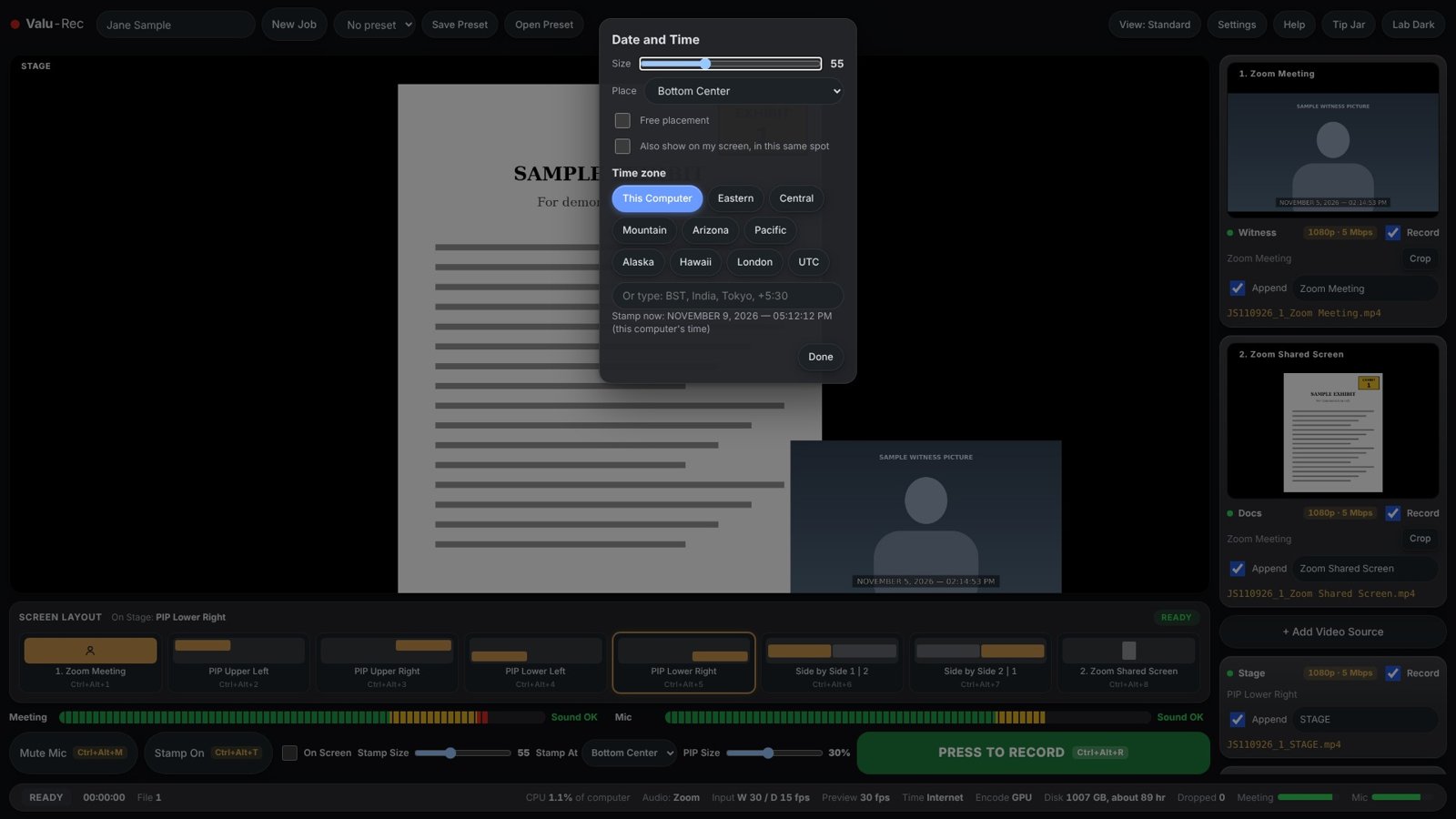
- Burned in to the Stage file (and any file you choose), so it can't be removed or drift.
- Internet time. The stamp and the session log use the internet's clock, so a wrong computer clock never reaches the record.
- Time zones in one click: Eastern, Central, Mountain, Arizona, Pacific, Alaska, Hawaii, London, UTC, or type any zone.
- Place it anywhere: top or bottom, left, center or right, or tick Free placement and drag it. Press Done, Esc or click outside to finish.
- On Screen: also shows the stamp on your monitor, in the same spot and size, for an HDMI recorder. It never doubles up in Valu-Rec's own files.
- Stamp On / Off: Ctrl+Alt+T.
Feed your HDMI backup recorders
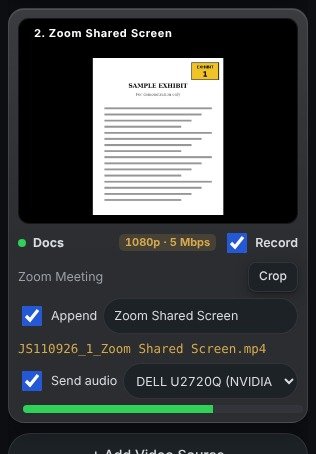
Many videographers run an HDMI recorder as a backup. Valu-Rec can send the exact sound it is recording to those recorders, so you no longer need Loopback or VoiceMeeter.
- Choose the monitor as the source under a preview.
- Tick Send audio. Valu-Rec picks that monitor's HDMI or DisplayPort sound output.
- Watch the level bar under it. If it moves, the recorder is getting sound.
Leave that HDMI device unmuted at full volume in Windows or macOS, and turn the monitor's own speakers down instead. If the device is muted in the computer, the recorder gets silence, and Valu-Rec tells you.
Video settings agencies ask for
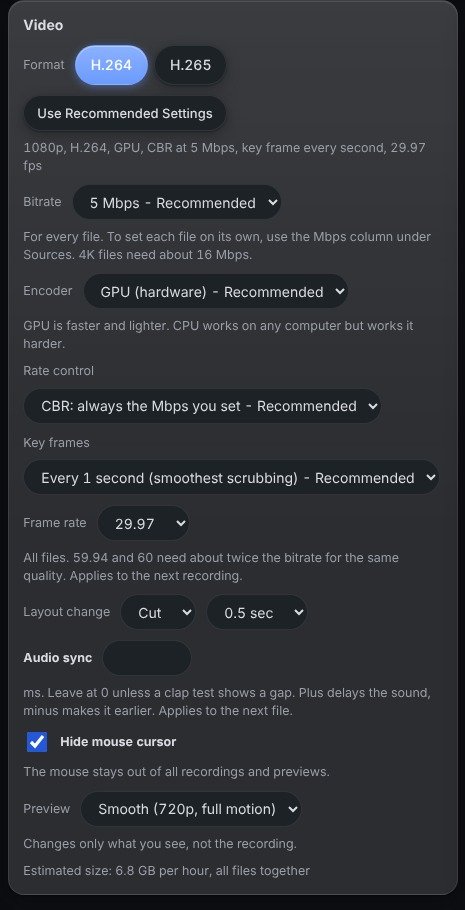
Open Settings and press Use Recommended Settings for what nearly every agency wants:
| Resolution | 1080p (4K available) |
|---|---|
| Format | H.264 MP4 (H.265 available) |
| Rate control | CBR, constant bitrate (VBR and Quality available) |
| Bitrate | 5 Mbps per file, 3 to 30 Mbps |
| Encoder | GPU (NVIDIA, AMD, Intel, Apple), or CPU |
| Key frames | Every second, for smooth scrubbing in sync software |
| Frame rate | 29.97 (also 24, 30, 59.94, 60) |
Click the 1080p · 5 Mbps tag on any source card to jump straight to the bitrate. Run the Stress Test in Settings once to see whether your computer can handle 4K.
A view for every screen
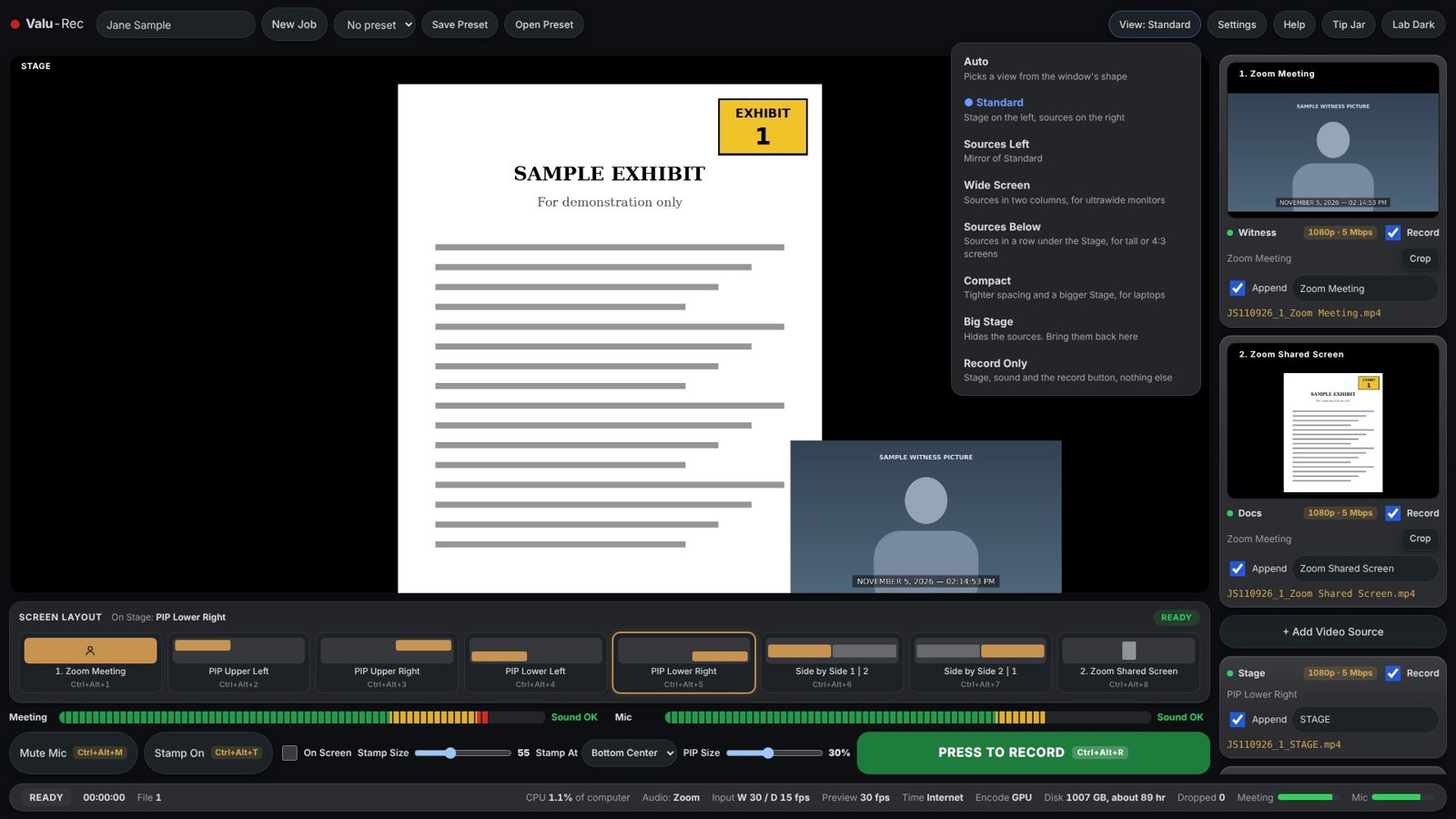
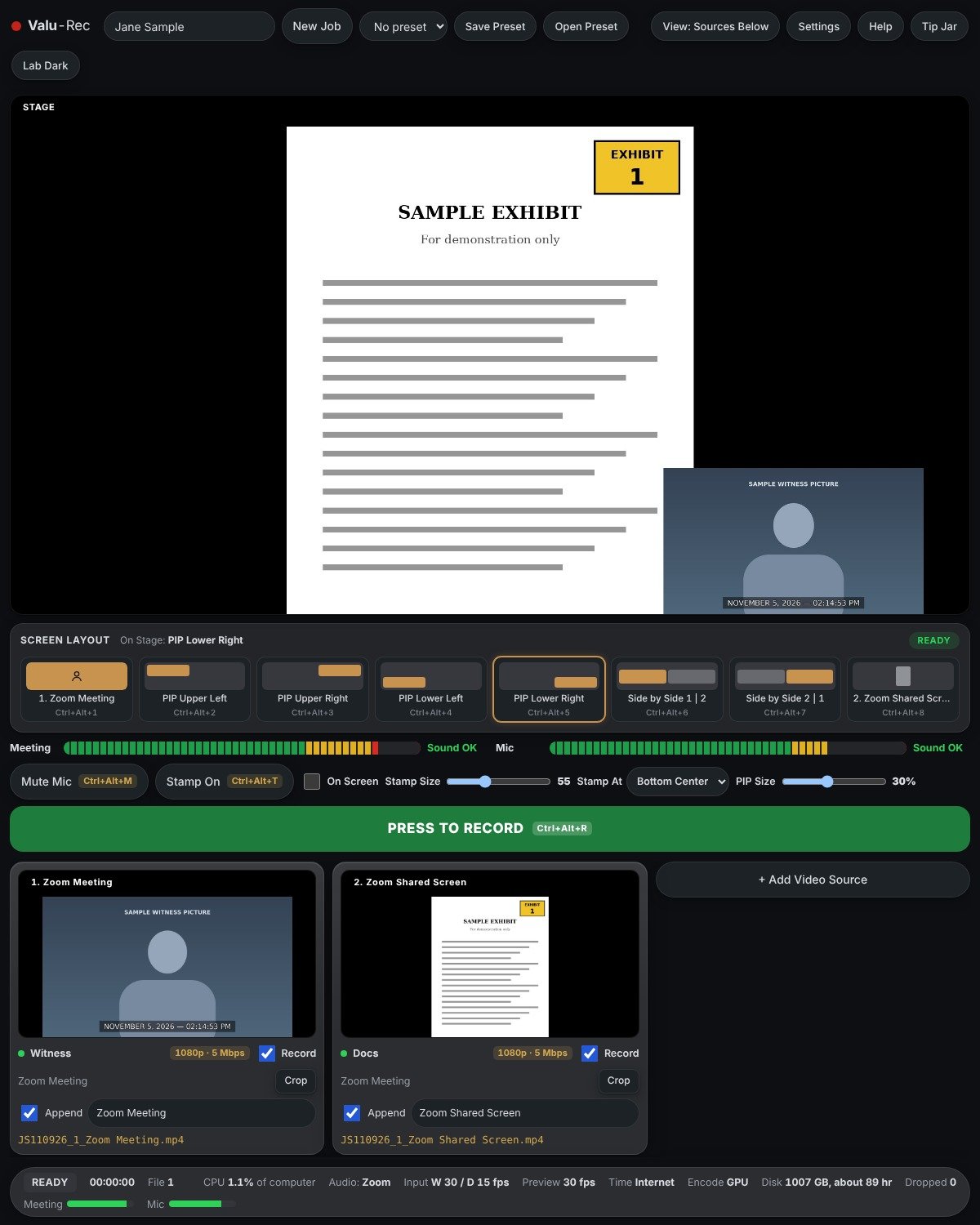
The View button at the top arranges the same controls for your screen. Auto picks one from the window's shape. Wide Screen suits ultrawide monitors, Sources Below suits tall or portrait screens, Compact suits laptops, and Record Only shows just the Stage, the sound and the record button. The whole window scales when you resize it, and the previews always stay in full view.
Jobs, presets and session times
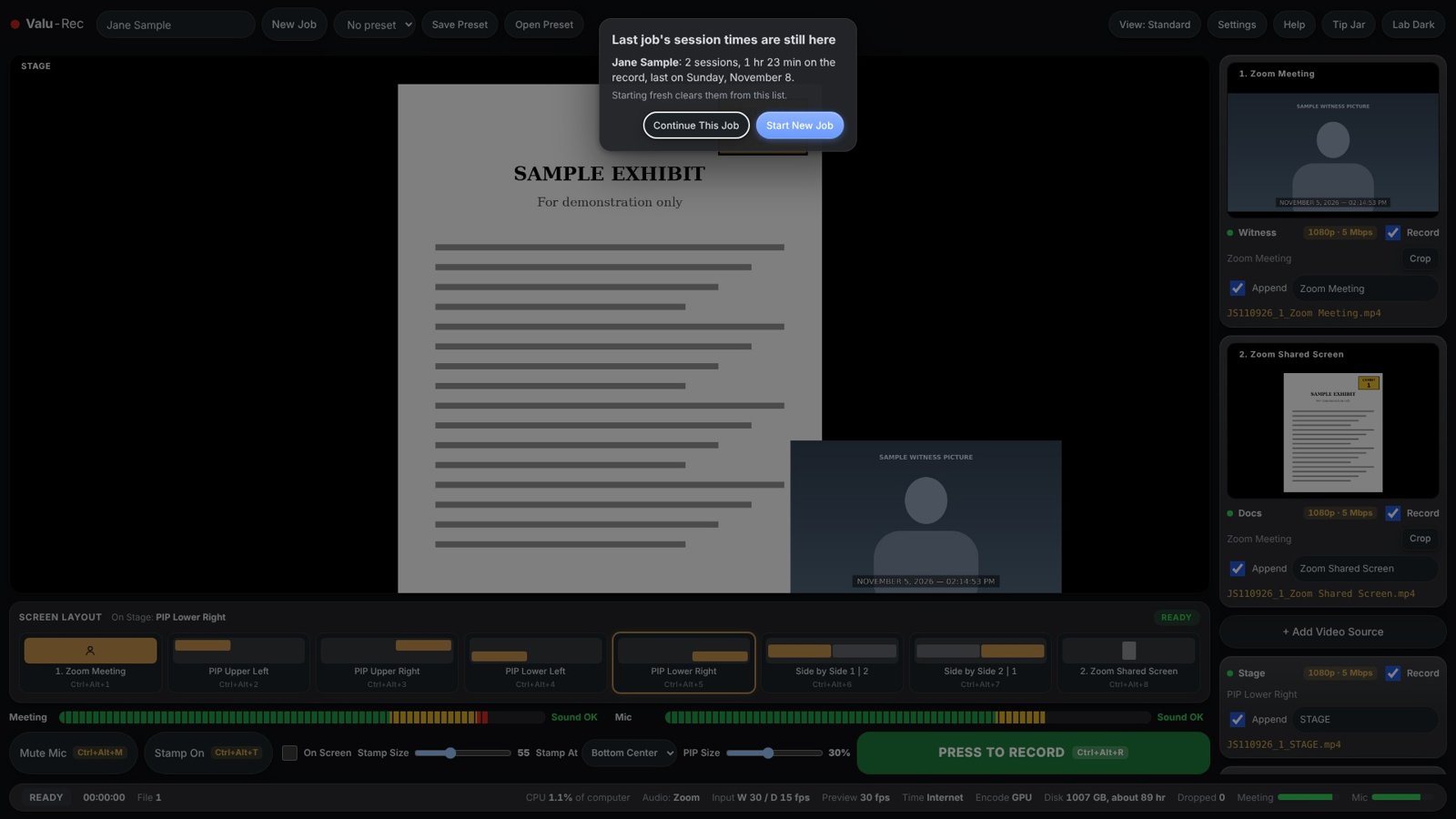
- Session Times lists every on and off the record, with the total. They save next to the recordings after every break, so closing the app never loses them.
- New Job clears the times and the name for the next deposition.
- Save Preset keeps your whole setup: sources, layout, audio, stamp, video settings and HDMI sends. Make one per agency, then Open Preset or double-click the preset file.
- Updates: Valu-Rec checks for a new version when it opens and offers a one-click download. Your settings and presets stay.
Not just depositions
Anything that happens over Zoom, Teams, Webex or Google Meet and needs a clean, time-stamped record:
Mediations & arbitrations
A neutral, time-stamped record with the speaker and documents side by side.
Hearings & sworn statements
Burned-in date and time, on and off the record logged automatically.
Board & council meetings
Record the meeting and the shared agenda as separate files, ready to post.
Interviews & podcasts
Guest and host on separate channels, picture-in-picture or side by side.
Training & webinars
The presenter in the corner, the slides full size, and a slides-only file.
Church & school events
Record a remote speaker and the screen, and send the sound to the room.
Always follow the law and the meeting's rules on recording, and tell everyone they are being recorded.
Questions
What if the computer crashes or the power goes out?
Every file is written to survive it. Reopen Valu-Rec: everything up to the last second or two plays normally. With PARANOID mode on, a second copy is on another drive too.
Will the mouse pointer show in the recording?
No. The mouse is kept out of every file and preview by default (Settings › Video › Hide mouse cursor).
The witness's sound and picture are a little out of sync.
Do a clap test, then set Settings › Video › Audio sync in milliseconds. Plus delays the sound, minus makes it earlier.
The exhibit window went black when the share stopped.
It shouldn't: Valu-Rec holds the last picture and says "Holding last picture, waiting for the share". Pick the shared screen again if the meeting window changed.
How big are the files?
At 5 Mbps, about 2.3 GB per hour per file. The status bar shows how many hours of space are left.
Is it really free?
Yes, on Mac and Windows, with no watermark or time limit. If it saves you on a job, the Tip Jar in the app keeps it going.