How to Use
Step-by-step guides
1Install and allow Valu-Snap
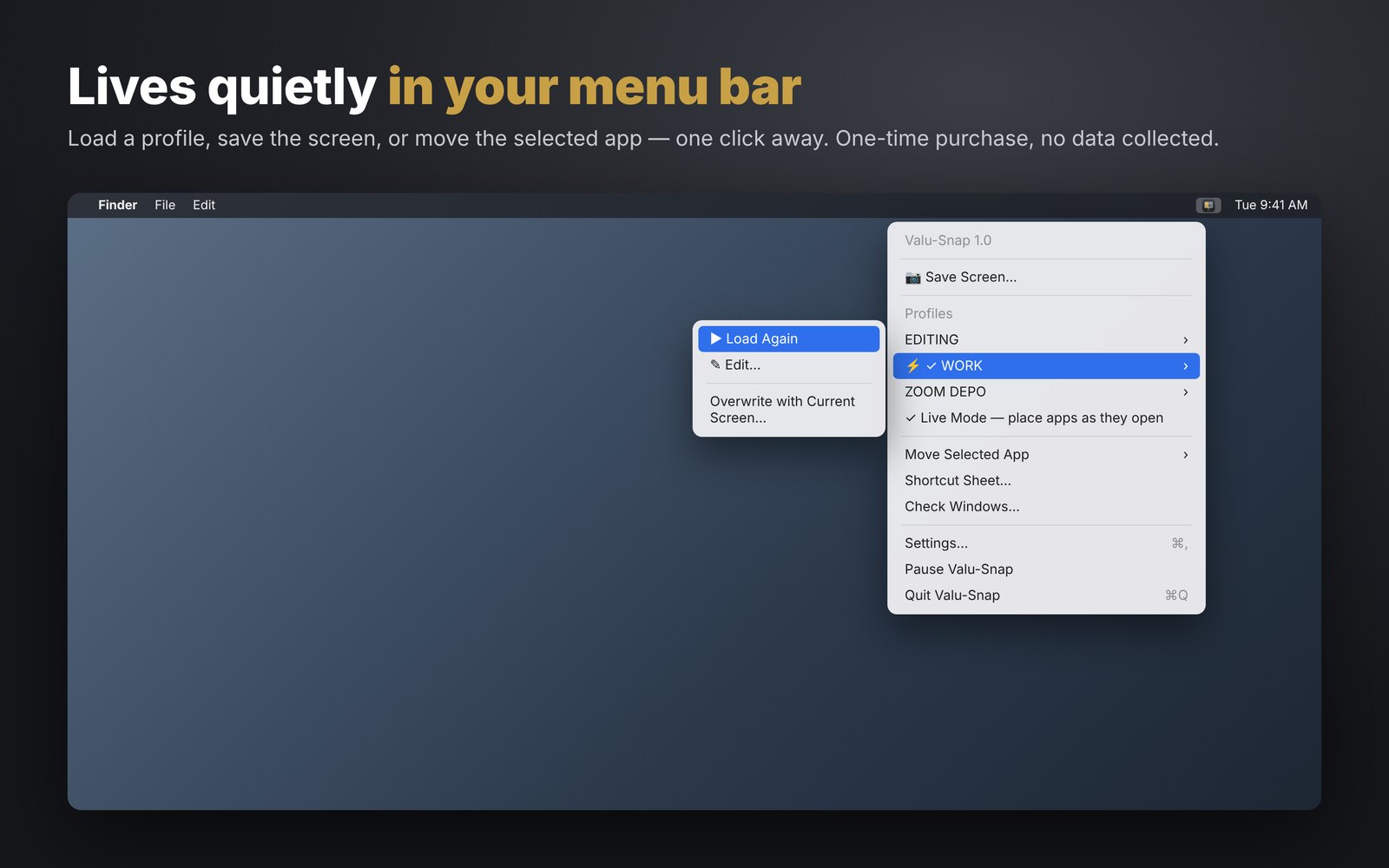
- Mac: get Valu-Snap from the Mac App Store and open it. Its icon appears in the menu bar (top right) — a layout with one gold pane.
- macOS asks for Accessibility access. Click Open Settings and turn on Valu-Snap in Privacy & Security → Accessibility. Valu-Snap carries on by itself once it's on.
- Windows: run the installer. Valu-Snap lives in the tray by the clock (click ^ if it's hidden). No permission is needed.
- Linux: install the .deb (double-click it, or
sudo apt install ./Valu-Snap_*.deb), then open Valu-Snap from your apps menu. Its icon sits in the top bar / tray.
- Linux, one-time: Valu-Snap needs an Xorg session (Wayland doesn't let apps move other windows). At the login screen click the gear ⚙ and pick the session ending in “on Xorg”. Valu-Snap shows a reminder if you're on Wayland.
Want it running all the time? Settings → General → Start at login.
2Snap the selected app with the keyboard
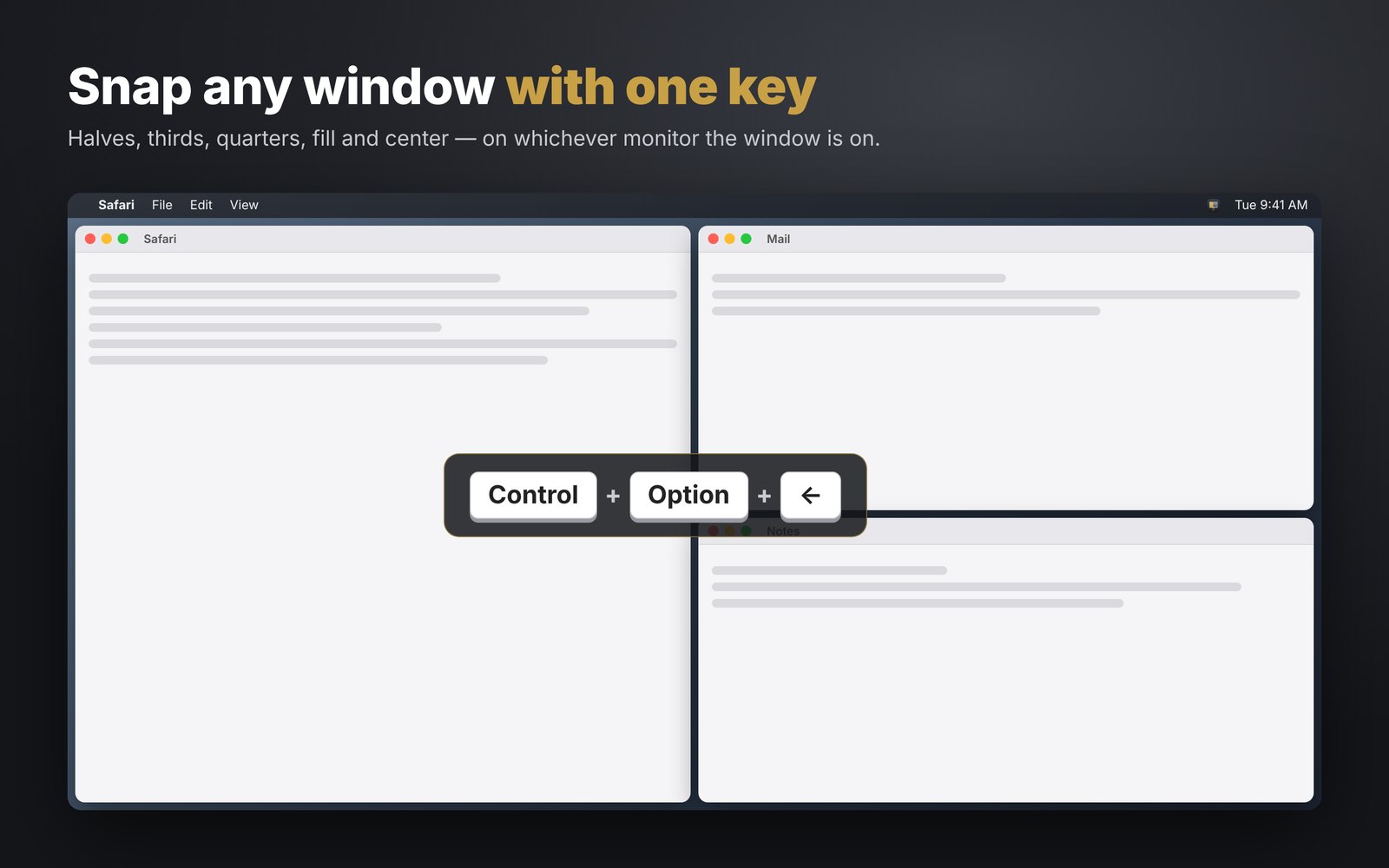
Click into any app, then press the trigger plus a key. It moves on the monitor it's already on, sized to that monitor.
| Mac | Windows & Linux | Does |
|---|
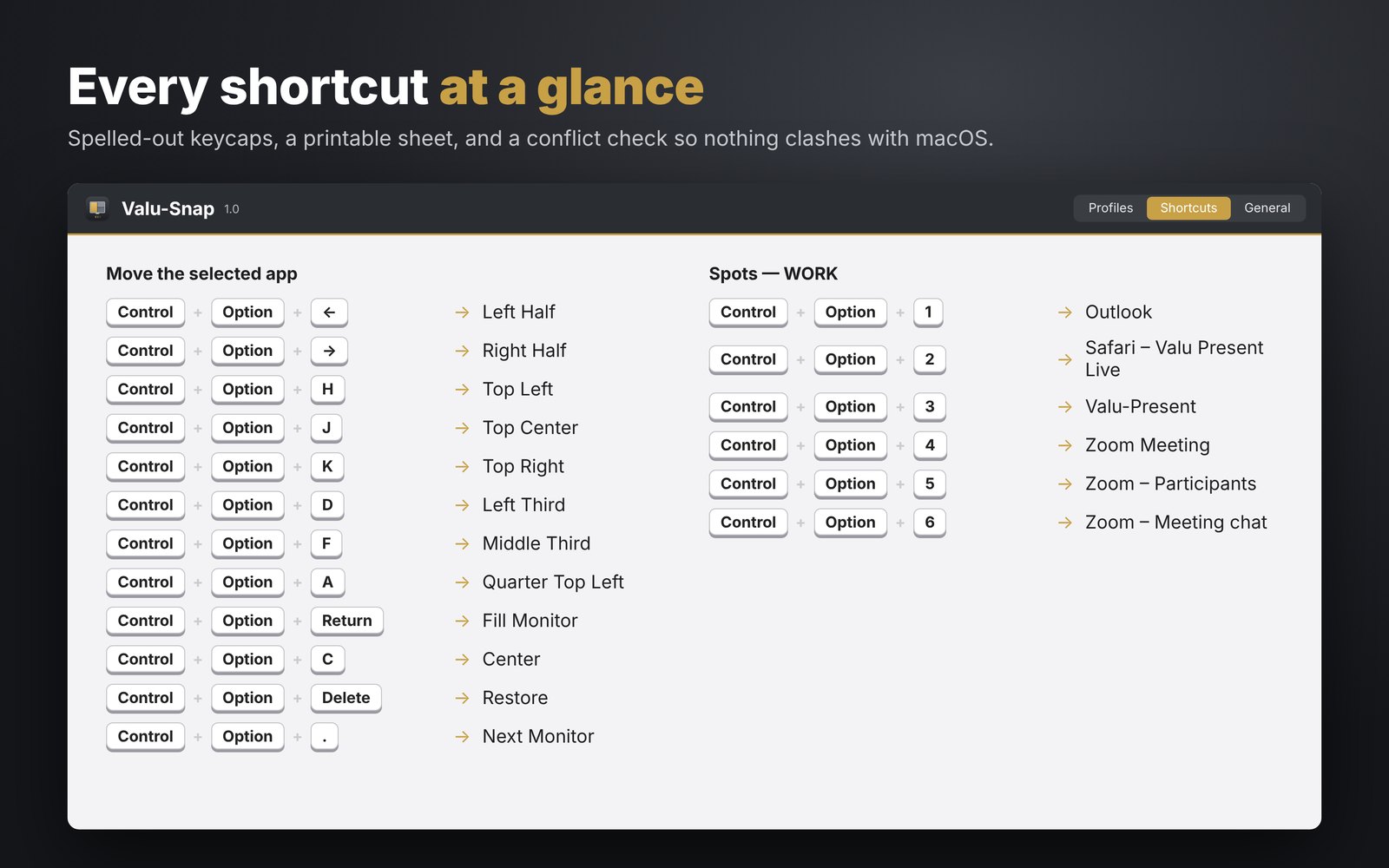
| Control+Option+← | Ctrl+Alt+← | Left half |
| Control+Option+→ | Ctrl+Alt+→ | Right half |
| Control+Option+↑ | Ctrl+Alt+↑ | Top half |
| Control+Option+↓ | Ctrl+Alt+↓ | Bottom half |
| Control+Option+H J K | Ctrl+Alt+H J K | Top left / center / right |
| Control+Option+B N M | Ctrl+Alt+B N M | Bottom left / center / right |
| Control+Option+A S Z X | Ctrl+Alt+A S Z X | Quarters |
| Control+Option+D F G | Ctrl+Alt+D F G | Left / middle / right third |
| Control+Option+Return | Ctrl+Alt+Enter | Fill the monitor |
| Control+Option+C | Ctrl+Alt+C | Center |
| Control+Option+Delete | Ctrl+Alt+Backspace | Restore the size it had before |
| Control+Option+, . | Ctrl+Alt+, . | Previous / next monitor |
All keys are in the menu → Move Selected App, and on the Shortcuts tab (with a printable sheet). The trigger can be changed there too.
3Save your screen as a profile
- Arrange your windows the way you like them — every monitor.
- Menu bar icon → Save Screen…
- Choose Save as a new profile and type a name (e.g. ZOOM DEPO), or Overwrite an existing one.
- Click Save, then Load Now to make it live, or Edit… to fine-tune.
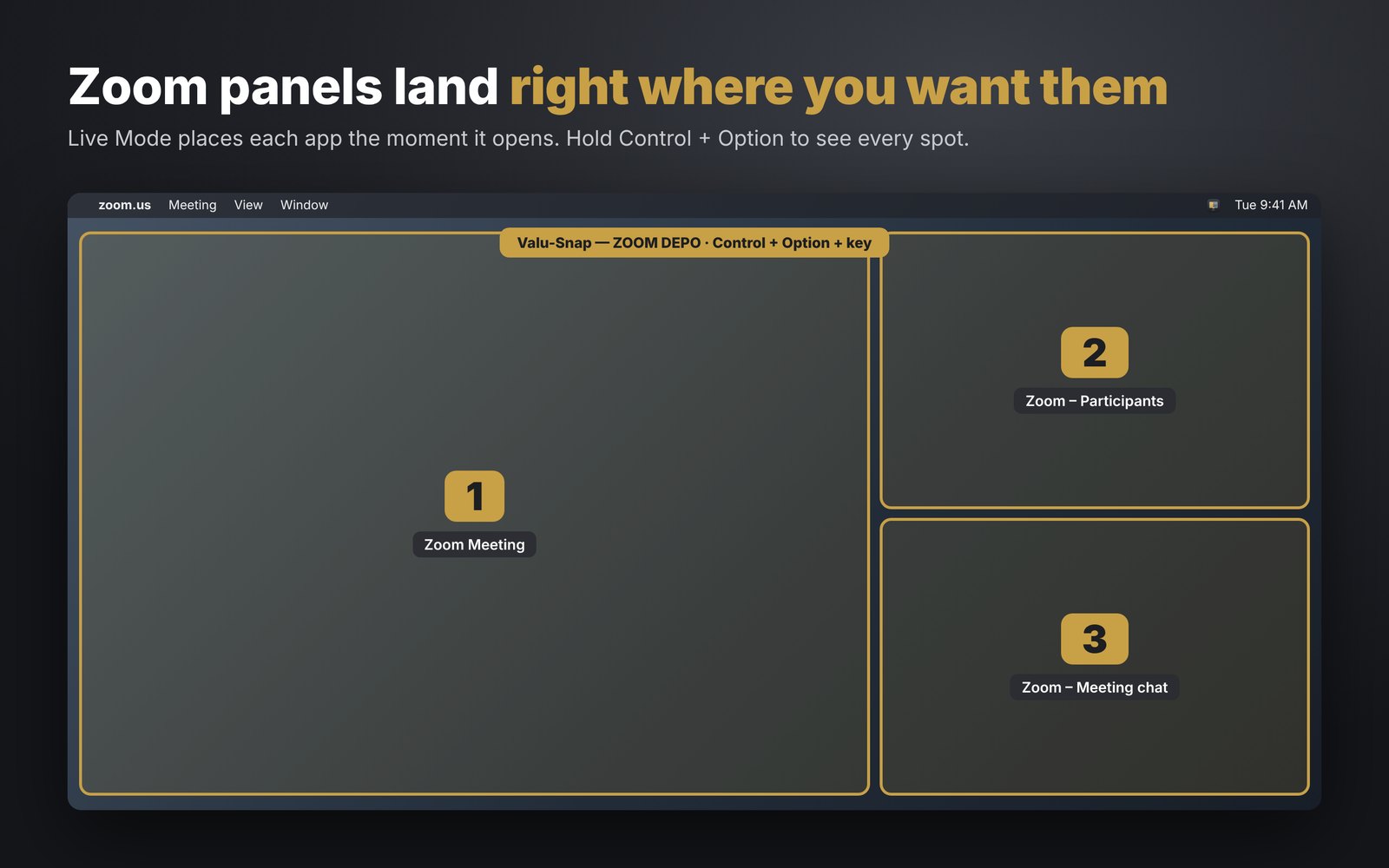
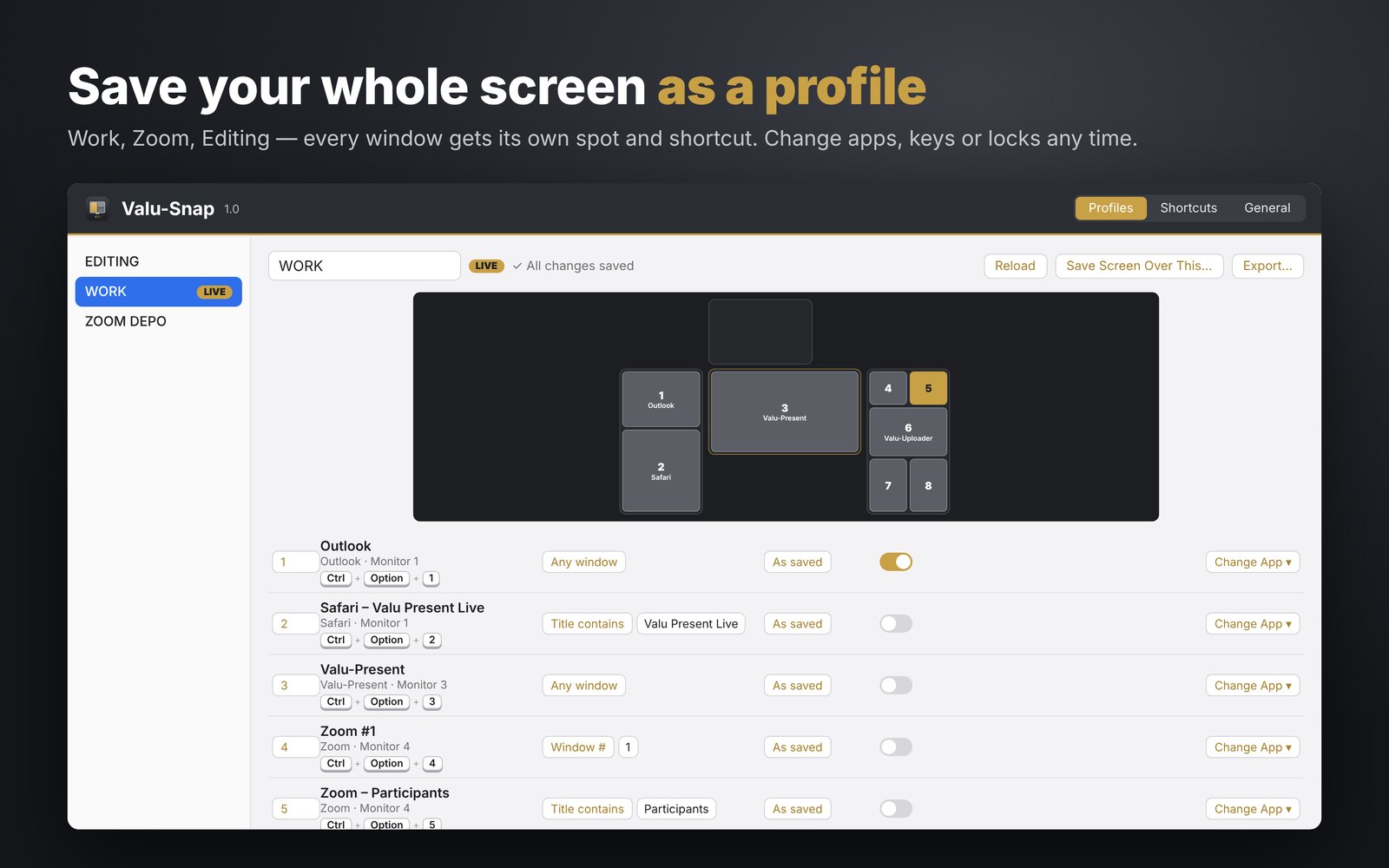
Every window gets its own spot key — Control+Option+1, Control+Option+2… named after its app.
Saving tells you if any app was left out and why. Full-screen and presentation windows (like Valu-Present's Display) are never saved or moved — their own app controls them.
4Load a profile — and Live Mode
- Menu bar icon → hover a profile → Load. Every open window goes to its spot.
- Apps that aren't open yet are skipped — no problem. With Live Mode on (default), each one snaps to its spot the moment it opens.
- The loaded profile shows a gold LIVE badge and the menu bar icon's gold pane fills in.
- Windows are placed once, then they're yours to move. Turn on Lock in place for a window that must snap back if moved.
Auto-load: in the profile, set Auto-load when this app opens (e.g. Zoom) and that profile loads by itself when Zoom starts.
5Spot keys — send any app to a saved spot
A spot is a place, not an app. Click any window and press Control+Option+1 to send it to spot 1 of the loaded profile. Spots run 1–9, 0, then Q W E R T Y U I O P (20 in all).
Hold Control+Option for half a second (Mac) to see every spot drawn on your screens with its number.
6Edit a profile
- Menu bar icon → hover the profile → Edit… (or Settings → Profiles).
- The layout map shows your monitors as they're really arranged. Click a window on it, then:
- Change App — e.g. put Edge in Safari's spot. Same place, size and key.
- Swap Places — click a second window; they trade spots and keys.
- Remove — keys renumber 1, 2, 3… automatically.
- Each row: key, match (Any window / Title contains / Window #), size (As saved / Fill monitor / True full screen), Lock in place.
- Click Save (⌘+S / Ctrl+S). Revert undoes your edits.
7Zoom: meeting, Chat and Participants
- Start a meeting and pop out Participants and Chat. With dual-monitor mode, place both meeting windows too.
- Arrange them, then Save Screen (or Overwrite your Zoom profile).
- Valu-Snap matches panels by the steady words in their titles (“Participants” — not the changing count), and the two meeting windows by position, so primary and secondary never swap.
- Next meeting: with the profile live, every panel lands in its spot as you open it.
8Monitors and resolution changes
Spots are saved as a share of each monitor, so they fit any resolution. Switch a monitor from 4K to 2K (or plug in a different arrangement) and Valu-Snap re-fits the loaded profile automatically after a moment. Turn this off in Settings → General → Live Mode.
Monitors are recognized by their serial number, so swapping cables or ports doesn't confuse them; a missing monitor's windows go to the nearest one.
9Backups — and moving profiles to another computer
- A backup is made automatically whenever a profile is overwritten, imported over or deleted (Settings → General → Show Auto-Backups).
- Export… one profile or Export All…, then Import Profiles… on another Mac, Windows or Linux computer. The same file works on both — apps are matched by name, and anything not installed is flagged with Change App.
- Shortcuts convert automatically: Control + Option on Mac, Ctrl + Alt on Windows and Linux.
- Profiles move between Mac, Windows and Linux the same way.
10Check Windows — when an app won't save
Menu bar icon → Check Windows… lists every window Valu-Snap can see, which monitor it's on, and why any are skipped (minimized, hidden, a popup, a presentation window). Use Copy to send it for support.
11Free trial, buying and activating
Mac (App Store)
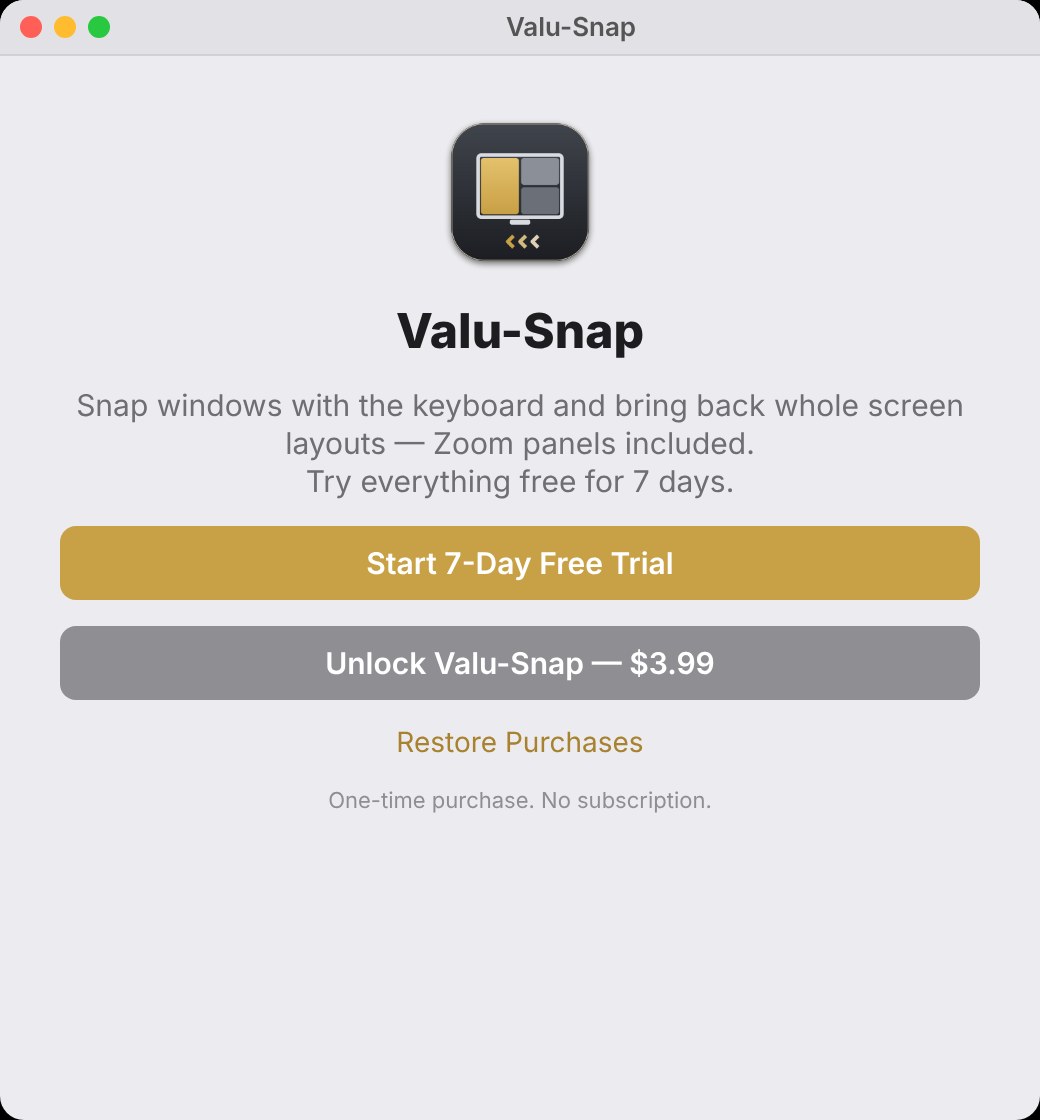
- Click Start 7-Day Free Trial to try everything.
- Any time, click Unlock Valu-Snap — $3.99. One-time purchase; Family Sharing is on.
- New Mac? Restore Purchases (menu bar icon → Unlock Valu-Snap…).
Windows & Linux
- The 7-day trial starts the first time you open Valu-Snap — nothing to click.
- To buy ($3.99), click Email to Order above (or Email to Buy… on the app's License tab). You'll get your license key by email.
- Open the License tab, paste your email and key, click Activate. Use the same key on each of your Windows and Linux computers.