spam blockers anti spam
← Back to Valu-Loop

Valu-Loop User Manual.

How to route sound with Valu-Loop on Windows and Mac.

Install

Windows (64-bit Windows 10 version 2004 or newer, or Windows 11)

  1. Download Valu-Loop from the link above and run Valu-Loop-Setup.
  2. Follow the steps. The installer adds Start menu and desktop shortcuts.
  3. To update, run the newer installer. Your settings stay in place.
  4. To remove Valu-Loop, use Installed apps in Windows Settings.


Mac (Apple Silicon with macOS 14.2 or newer)

  1. Open the DMG and drag Valu-Loop to Applications.
  2. Open Valu-Loop. When macOS asks, allow audio recording so it can capture apps, and Microphone if you use a mic source.
  3. To update, drag the newer version over the old one. Your settings stay in place.


Valu-Loop installs no driver or virtual cable on either system.

The main screen

The Valu-Loop main screen

Sources

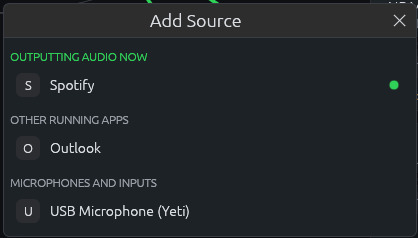
Click Add Source to open the picker.

The first time Valu-Loop opens, Zoom, Teams, Webex, and Google Chrome (for Google Meet) are already listed, switched off. Turn on the ones you use and remove the rest with the ×.

The Add Source picker


Each source card has these controls:


Capturing an app includes its helper processes, which is where browsers usually play sound. Capturing doesn't silence the app, so it still plays through its own speaker setting.

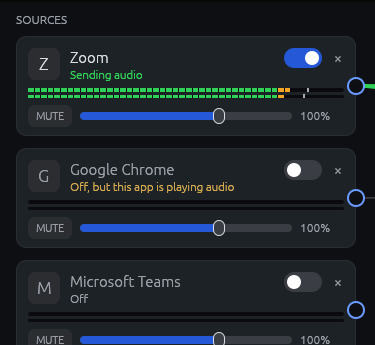
On/off switches

Use the switch to change which app you're using without rewiring. An off source isn't captured, and its wires stay on screen as faint lines. Turn it back on and they work again.

Source cards with switches


If a source is off while its app is playing audio, the card shows a gold warning: Off, but this app is playing audio.

Destinations

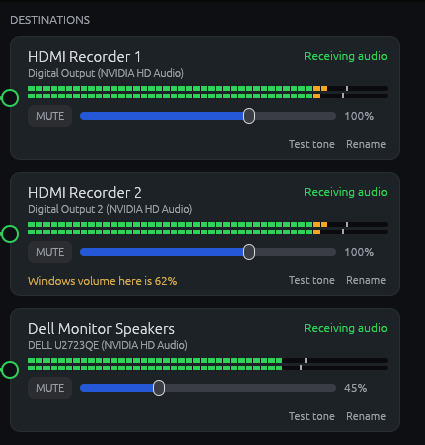
Every sound output your computer lists appears here automatically. Two devices with the same name, such as two monitors of one model, are numbered (1) and (2).

Destination cards


The status at the top right of each card tells you what's happening:


A gold note appears if Windows or macOS has the device below 100%, and a red note appears if it has it muted. These settings lower what the device actually gets, so fix them in your sound settings.


Above the list, Rescan lists devices and apps again right away, and Sound Settings opens your computer's sound settings. Valu-Loop can only send to devices the system lists as outputs, so a missing device has to be fixed there.
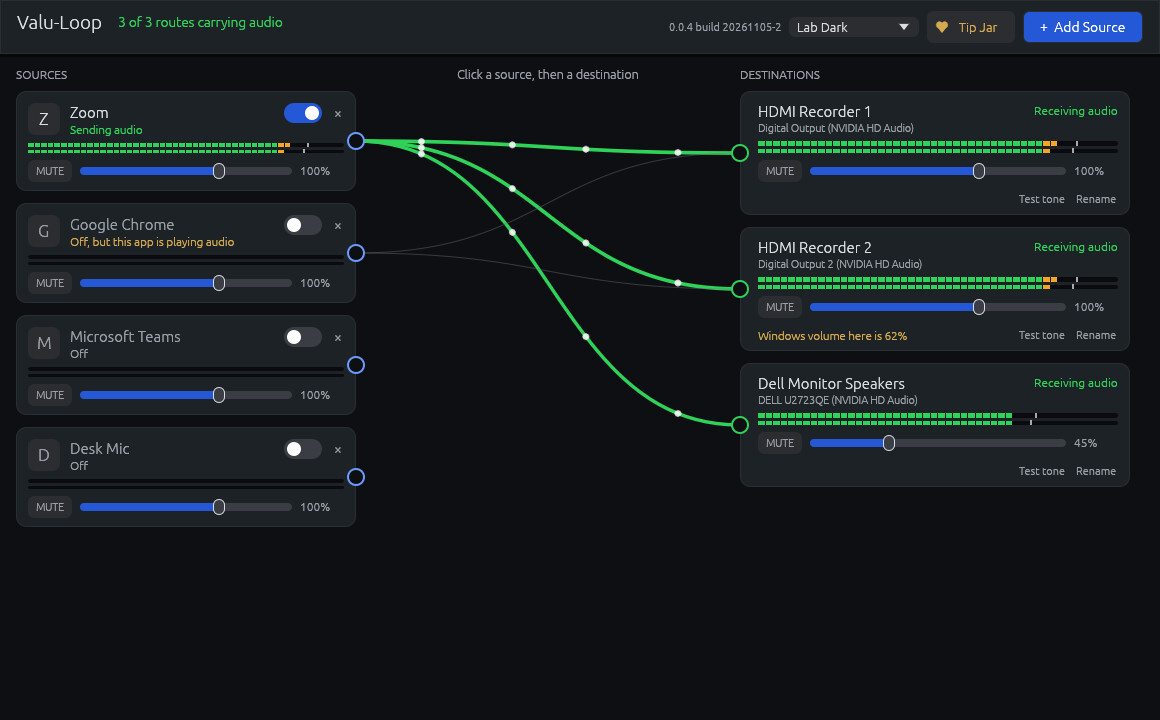
Routes and wires


Wire colors:

Reading the meters

Each meter has a left and a right bar, running from -60 dB to 0 dB. Green is normal, gold starts at -12 dB, and red starts at -3 dB. The thin line marks the recent peak. Keep it out of the red, because sound past full scale will clip.

Multiple sources

You can turn on as many sources as you want. Each destination mixes everything wired to it, and each source keeps its own volume, mute, and meter. If a destination reaches the red, lower the source volumes.

Meeting app settings

Your speakers

Each route goes to a specific device, not to whatever the system calls the default. You can change your default speakers without moving your routes. To hear the sound on a monitor with speakers, route to it and use that card's own slider.

OBS and other apps

Valu-Loop sends to existing devices and doesn't create one, so another app such as OBS can't select it directly. To give OBS exactly Valu-Loop's mix, use a free virtual cable:

Both are free from their makers (VB-CABLE is donationware). On the BlackHole page, choose the 2ch version.

  1. Install VB-CABLE on Windows or BlackHole on Mac from the links above.
  2. In Valu-Loop, wire your sources to CABLE Input (Mac: BlackHole). VB-CABLE's names look backwards: Valu-Loop plays into Input, and the other app listens to Output.
  3. In OBS, add an Audio Input Capture source set to CABLE Output (Mac: BlackHole).

Saved settings and reconnecting

Valu-Loop saves changes as you make them, including sources, switches, wires, levels, names, and theme. It also returns to your last window size and position.


Settings are stored in %APPDATA%\Valu-Loop on Windows and ~/Library/Application Support/Valu-Loop on Mac.

Themes

Use the menu at the top to pick Lab Dark, Lab Light, or Follow System.

Tip Jar

Valu-Loop is free. The Tip Jar button opens a PayPal page in your browser if you'd like to support development. It's completely optional.

Troubleshooting