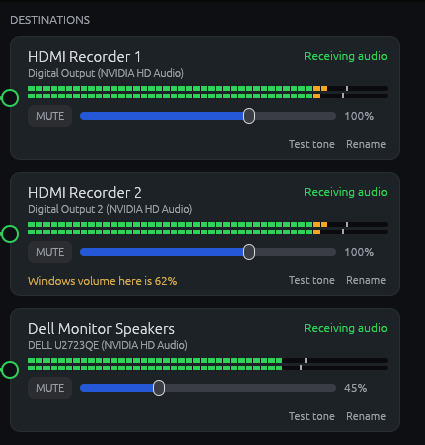
Set up a remote deposition with two HDMI recorders and a monitor. It takes about five minutes.
Connect your recorders and monitor, and join a test Zoom meeting or play something in Chrome so there is sound to route. If you use a different meeting app, the steps are the same.
Your sound outputs appear on the right. HDMI devices often have confusing names, and two monitors of the same model are numbered (1) and (2), so find out which is which first.

The tone also moves the meter, so you can see it left the app.
Make sure it is connected and on, then click Rescan above the destinations. If it still isn't there, click Sound Settings. Valu-Loop can only show devices your computer lists as sound outputs.
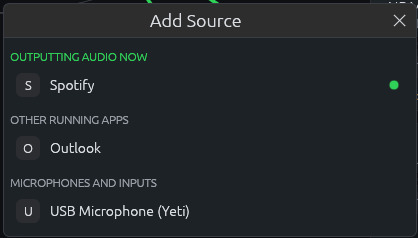
Zoom, Teams, Webex, and Google Chrome (for Google Meet) are listed the first time you open Valu-Loop, switched off so nothing is captured until you choose. Remove any you don't use with the ×. For anything else, use the picker.

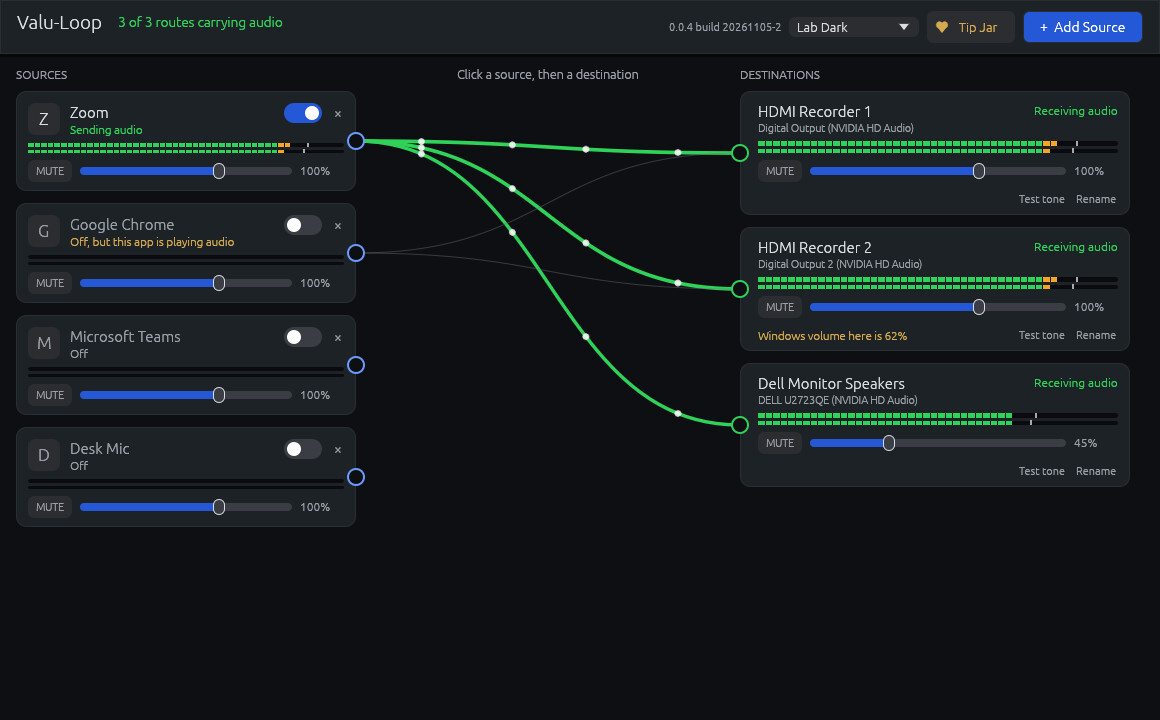
Drag from the dot on the right side of a source onto a destination.
Play sound in the meeting and read the screen from left to right.

Keep the meters out of the red. Lower the monitor with its own slider, and your recorders stay where they are.
OBS can't pick Valu-Loop directly, because Valu-Loop sends to devices and doesn't create one. A free virtual cable bridges the two.
Both are free from their makers (VB-CABLE is donationware). On the BlackHole page, choose the 2ch version.
Keep Zoom's speaker on your normal speakers and its microphone on your real mic. If Zoom's microphone is set to the cable, the other participants hear themselves echoed back. Also don't add the cable as a Valu-Loop source while it's wired as a destination, or the sound feeds back into itself.
Record a minute on each recorder, then play it back and listen before the job. Check that the sound is clean and lines up with the picture.
Your routes, levels, names, and switches are saved. If tomorrow's meeting is in Chrome instead of Zoom, turn Zoom off and Chrome on. If Chrome already has wires, you're done. Keep Valu-Loop open during the job, because closing it stops the sound to every destination.
See the User Manual for every control and troubleshooting.