Contents — jump to a section
Getting started
Valu-Present for iPad runs on any iPad that runs the current iPadOS. It works in landscape. For a courtroom
TV you’ll want a USB-C to HDMI adapter (the most reliable) or an Apple TV / AirPlay screen.
- Install the beta: install Apple’s free TestFlight app from the App Store, then open the invitation link you were sent.
- Your first screen lists your cases. Tap + New case to start one.
- Tip: an Apple Pencil works everywhere a finger does, and a Magic Keyboard adds shortcuts.
The layout — a tour of the Counsel Table
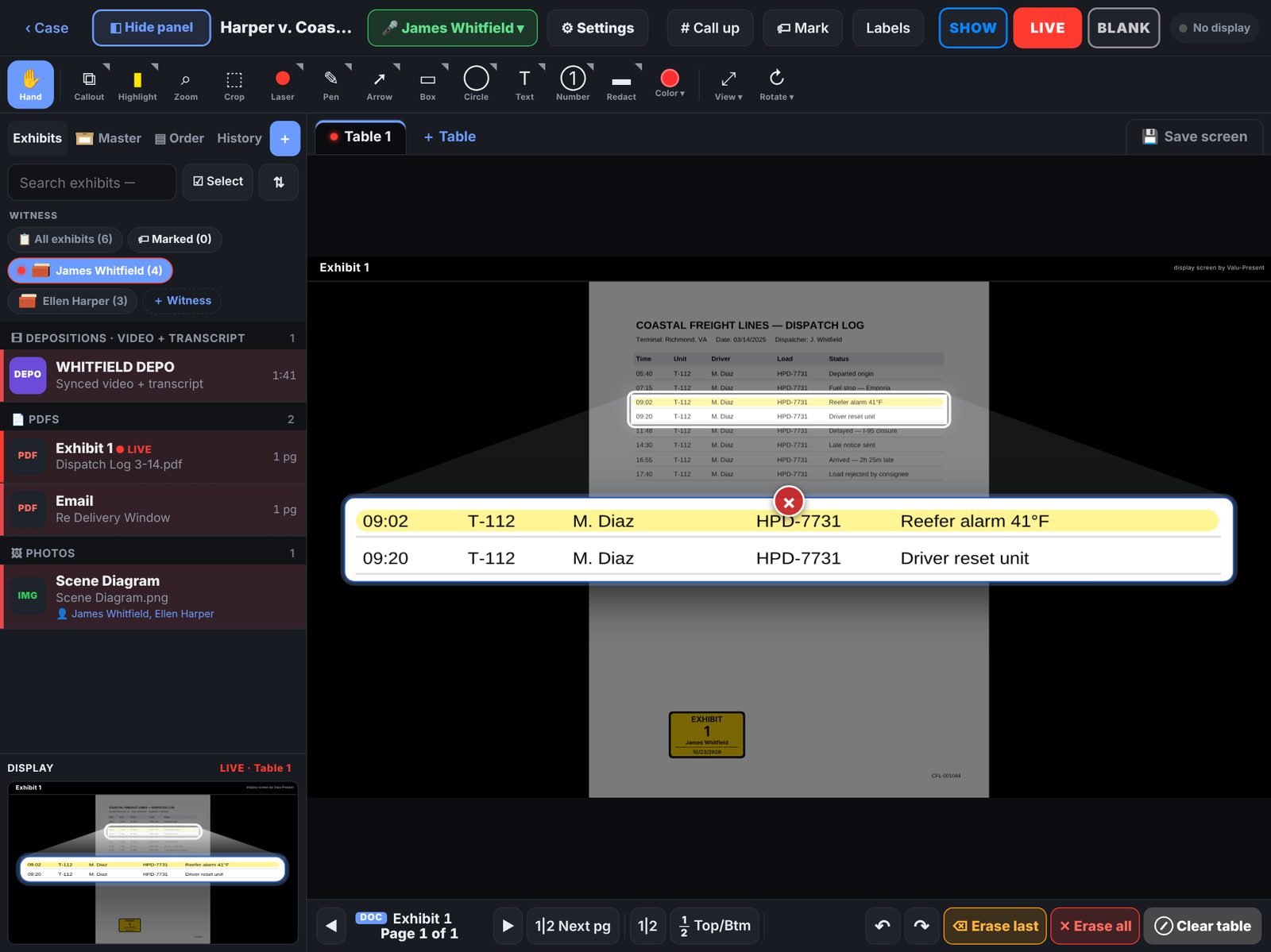
The Counsel Table is the screen you present from. Here is every part of it.
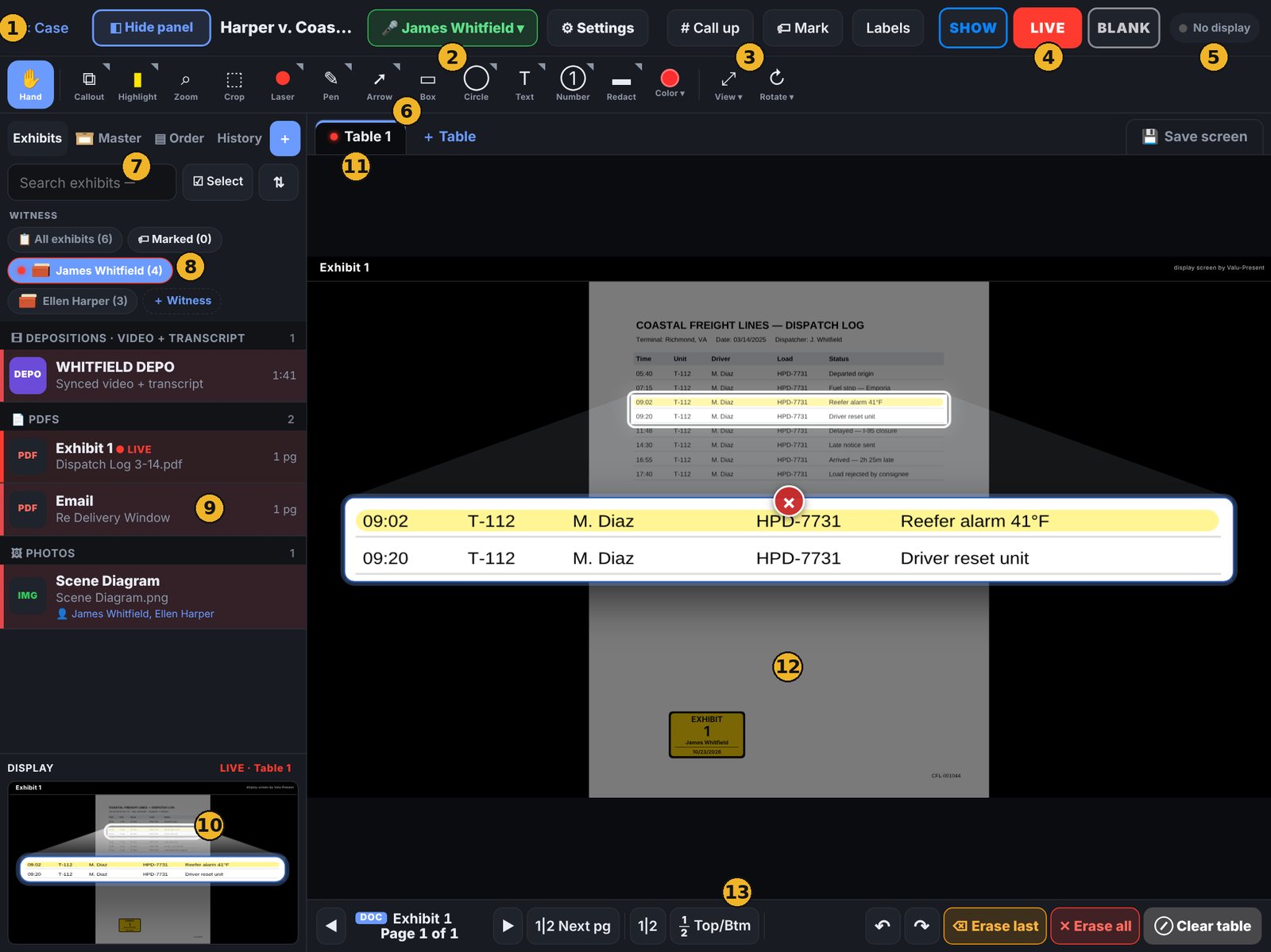
1‹ Case back to the case page · Hide panel gives the table the whole width.
2On the stand — the witness whose exhibits are listed. Tap to switch witness.
3Call up by exhibit or Bates number · Mark an exhibit · Labels on the Display.
4SHOW · LIVE · BLANK — what the Display shows (see SHOW · LIVE · CLEAR · BLANK).
5Display pill — what’s connected; tap for HDMI / AirPlay, Wi-Fi Display, Share and the TV test.
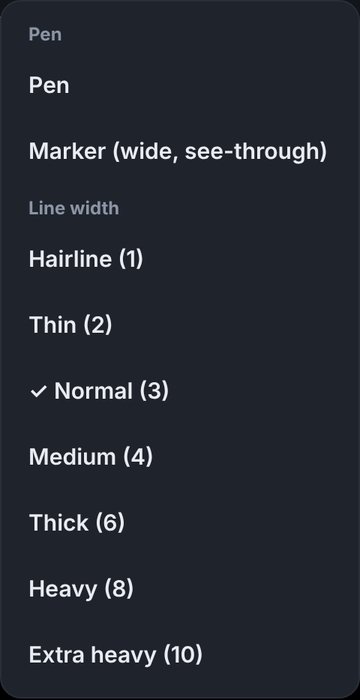
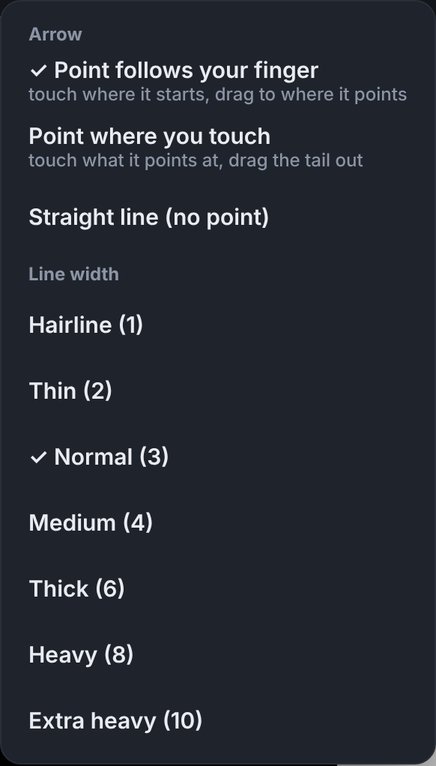
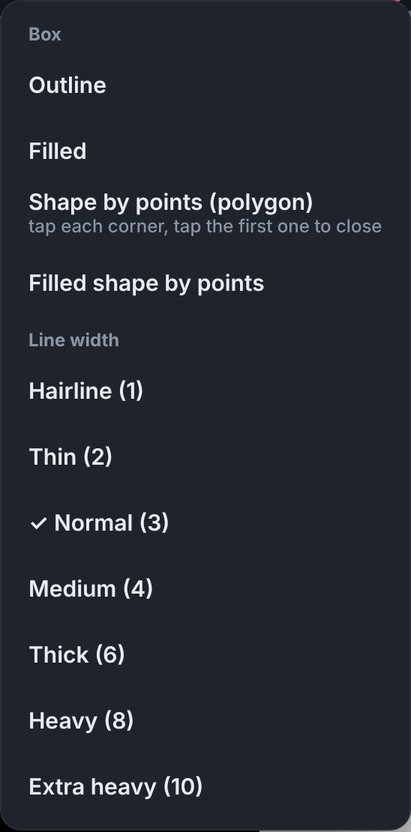
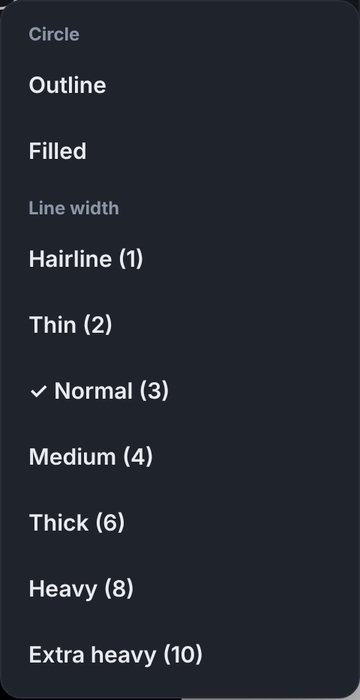
6Tool bar — tap a tool to use it; press and hold a tool with a small triangle for its options.
7Exhibits · Master · Order · History — this witness’s exhibits, the whole Master File, your presentation order, and everything shown so far. + imports.
8Witness chips — All exhibits, Marked, Admitted, and each witness (in their color).
9The list — grouped by type; the live document blinks. Hold a file for Rename, Mark, status and more.
10Display preview — exactly what the room sees. Folds to a “Showing LIVE” strip when a TV is connected.
11Tables — prepare on a second table while the first stays live. Save screen keeps a setup to bring back.
12The table — pinch to zoom, swipe to turn pages, draw with the tool you picked.
13Bottom bar — pages, side-by-side (1|2), top/bottom halves, undo/redo, Erase last / all, Clear table.
Make the list wider:drag the line between the exhibit list and the table. Double-tap the line to put it back.
↑ Contents
Create a case
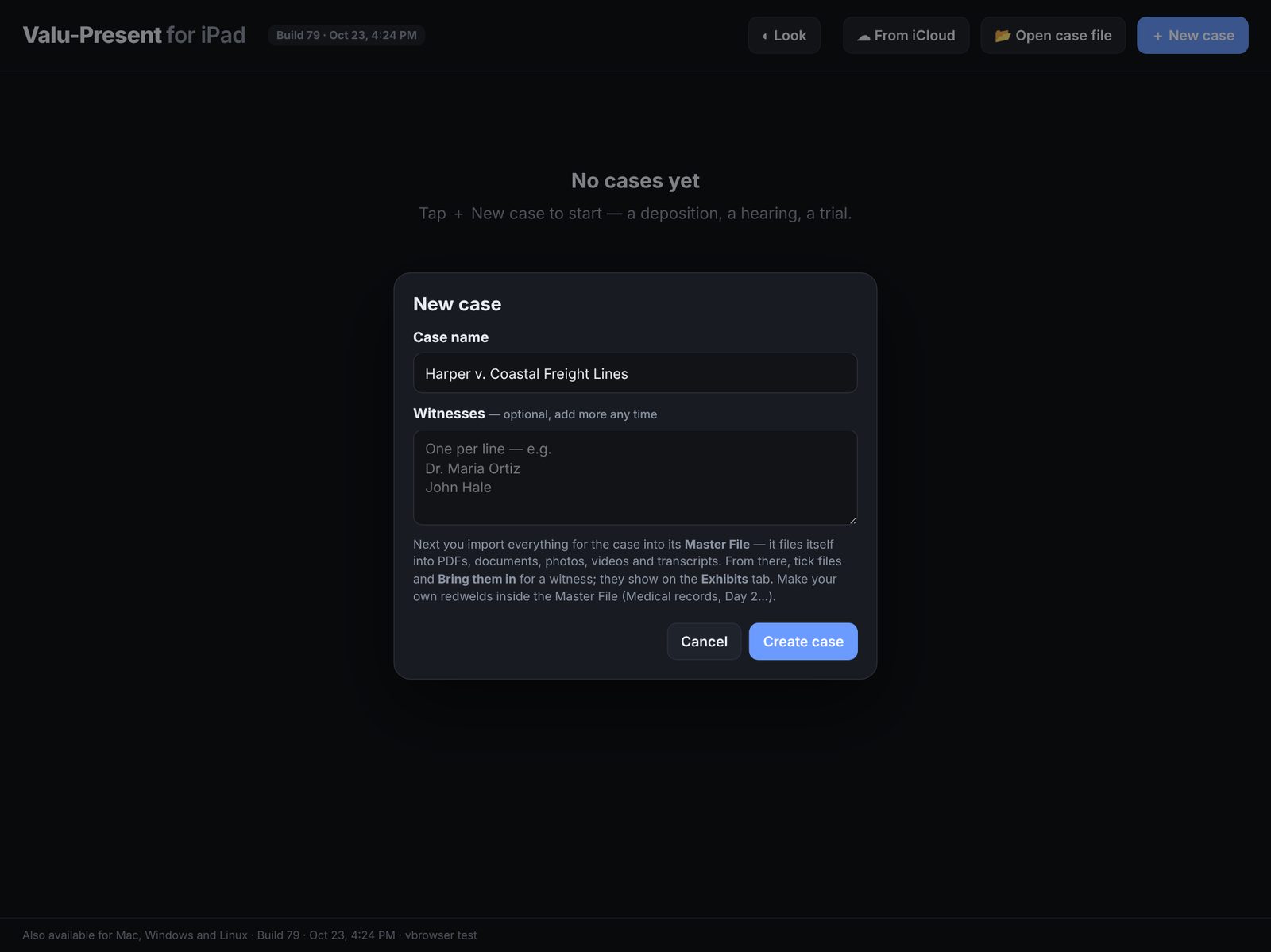
- On the Cases screen tap + New case.
- Type the case name (for example Harper v. Coastal Freight Lines). You can list witnesses now — one per line — or add them later.
- Tap Create case. The case page opens.
The case page
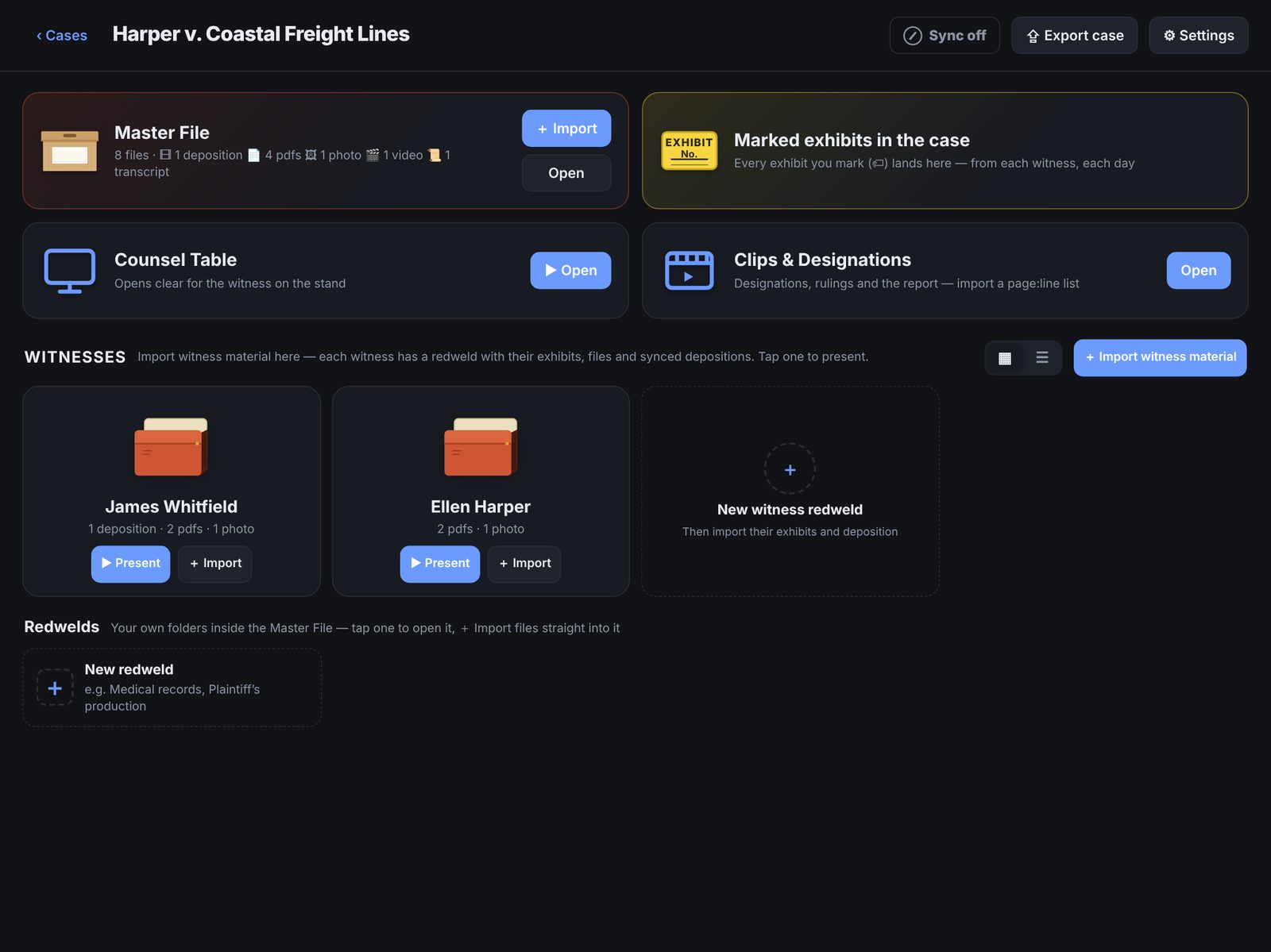
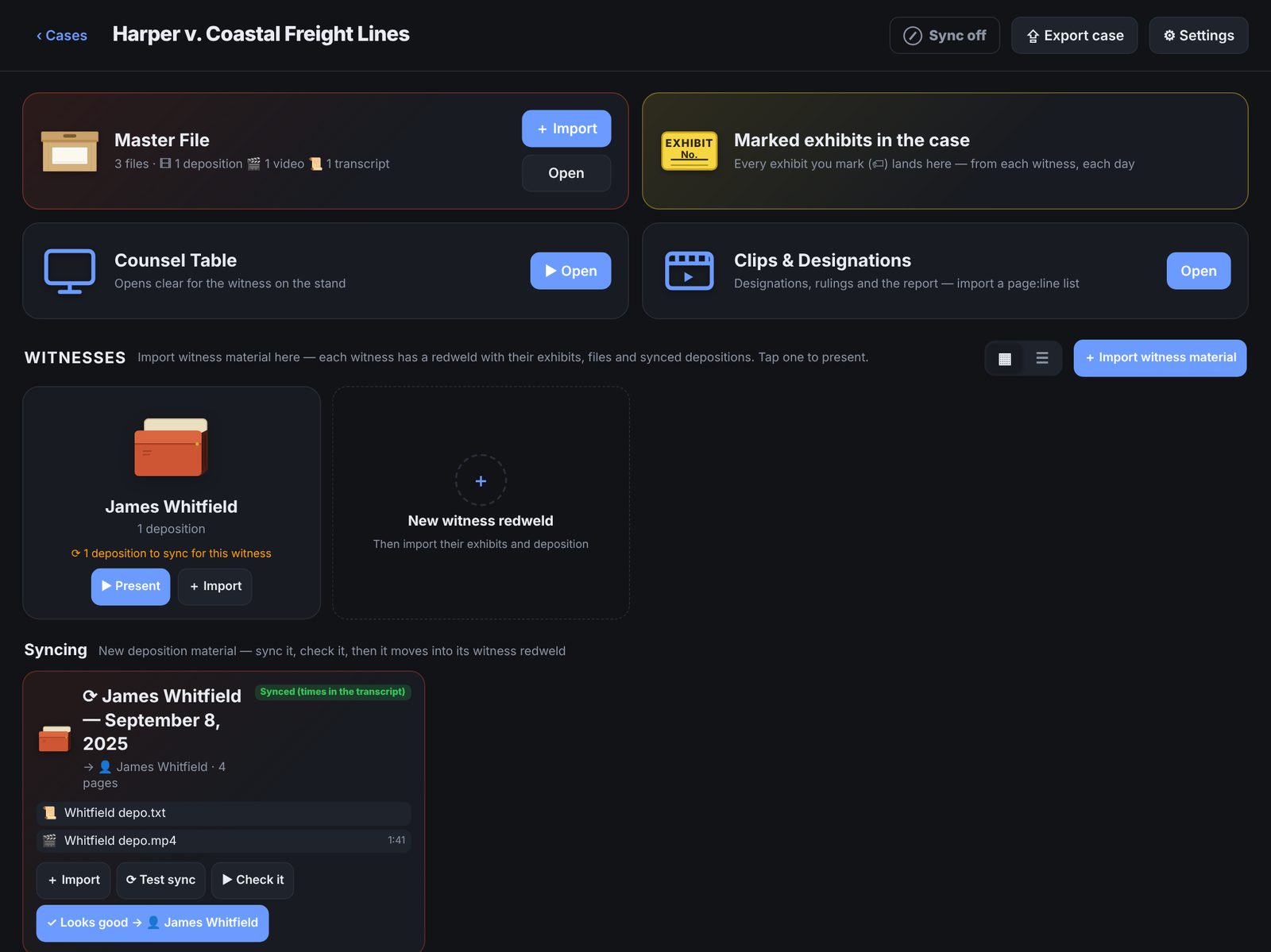
Everything starts here: the Master File (all the case’s files), Marked exhibits, the
Counsel Table (where you present), Clips & Designations, and a card for each witness.
Across the top are Sync, Export case and Settings.
↑ Contents
Open a case (load a job)
- On this iPad: tap the case on the Cases screen. It opens on the case page, and the Counsel Table opens where you left off.
- From your other iPad: tap ☁ From iCloud on the Cases screen and pick the case (it must have Sync turned on — see Sync two iPads).
- From a case file: tap 📂 Open case file and pick a case folder someone saved or shared (Files, Box, a USB drive, AirDrop).
- To present: on the case page tap ▶ Present on a witness — the Counsel Table opens clear, with that witness on the stand.
↑ Contents
Import into the Master File
The Master File is the box that holds everything in the case. Import once; it files itself by type —
Depositions, PDFs, Documents, Photos, Videos, Transcripts.
- On the case page tap + Import on the Master File card (or open the Master File and tap + Import at the top right).
- Choose where from:
- Files — iCloud Drive, Box, Dropbox, OneDrive, a USB drive.
- Photos & videos — from the Photos library.
- A whole folder — everything inside, sorted by type, with each sub-folder becoming its own redweld.
- Scan paper — the camera turns paper into a PDF.
- Another case — copy exhibits or whole depositions from a case already on this iPad.
- Word, Excel and PowerPoint files are converted to PDF so they can be shown, marked up and stamped.
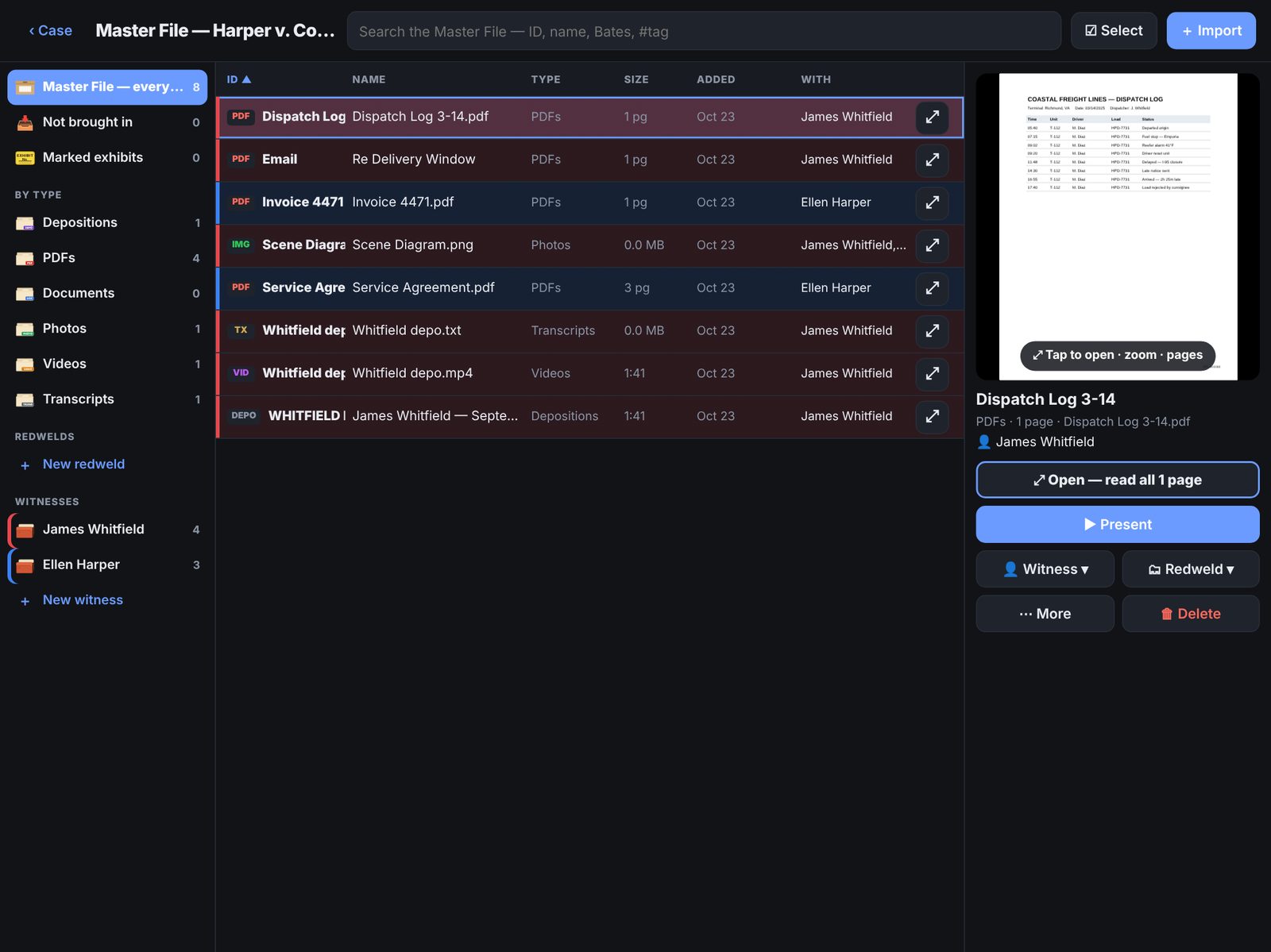
Left: everything, by type, redwelds and witnesses. Middle: the files — sortable by any column. Right: a preview of the selected file.
Rename anything: press and hold any file, anywhere in the app, and choose ✎ Rename — the ID (what Call up and labels use) and the name.
↑ Contents
Witnesses, redwelds & colors
Each witness has a redweld — their exhibits, files and synced depositions. Files you bring in for a
witness also appear on the Counsel Table when that witness is on the stand.
- Add a witness: + New witness in the Master File, or the New witness redweld card on the case page.
- Bring files in: press and hold a file and drag it onto the witness. To move several, tap ☑ Select, tick them, then drag.
- Or select a file and use 👤 Witness ▾ in the preview panel.
Witness colors
Every witness gets a color — the first is red, the second blue, then green, purple, orange, teal, pink and gold.
Their files carry a light tint of that color everywhere, so in the Master File you can see at a glance whose
they are. An exhibit marked for a witness takes that witness’s color. To change a color, press and hold the
witness and choose 🎨 Color….
Your own redwelds
Make folders of your own — “Medical records”, “Plaintiff’s production” — with + New redweld, then drag files in.
↑ Contents
Review any file
Look through a file without putting it on the Counsel Table.
- In the Master File tap a file — the preview appears on the right.
- Tap the preview, or ⤢ Open — read all pages, or the ⤢ button at the end of any row.
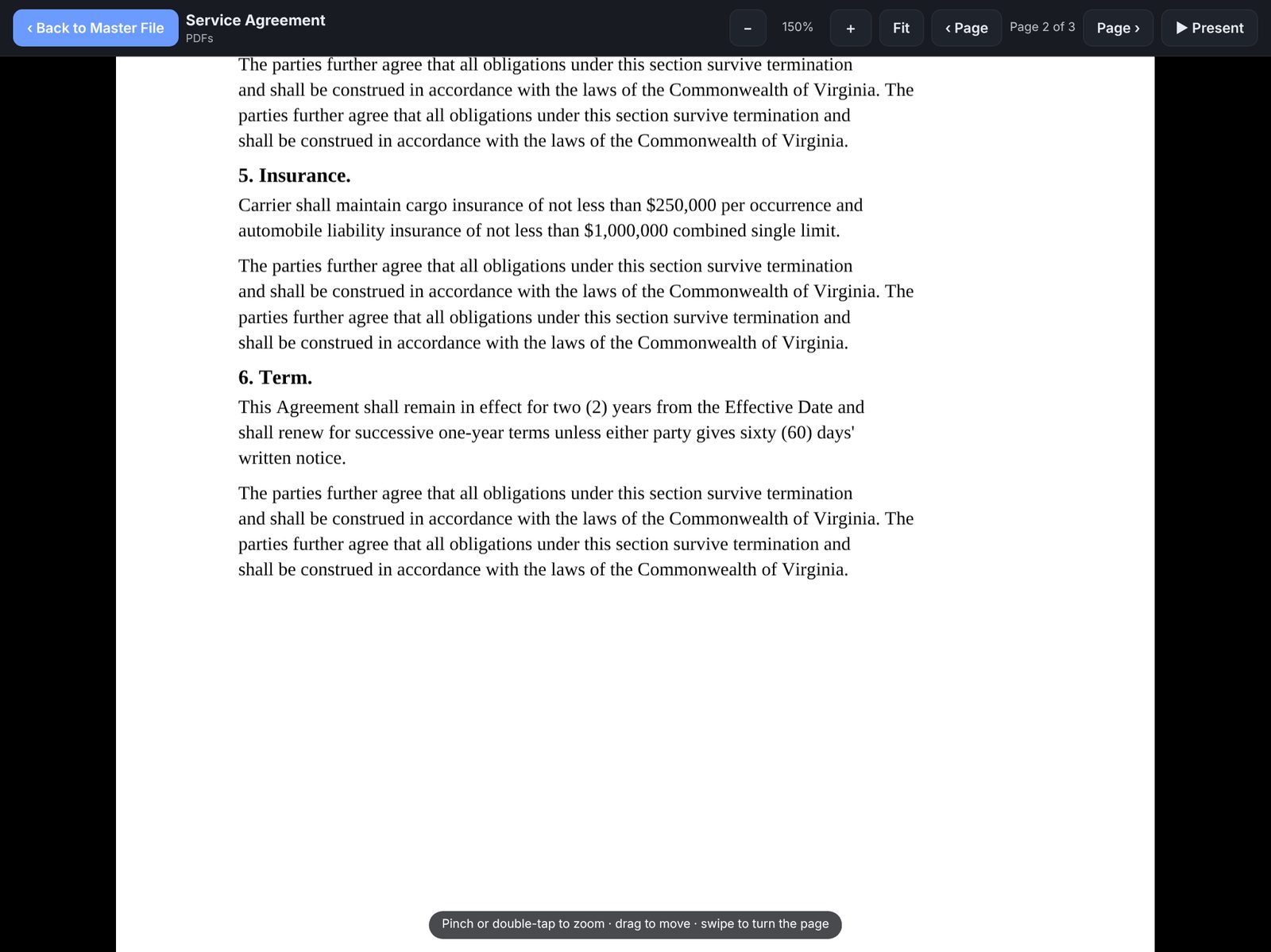
- Pinch or double-tap to zoom, drag to move around, swipe or tap Page › to turn pages. Fit puts the whole page back.
- Tap ‹ Back to Master File to return to exactly where you were — or ▶ Present to send it to the Counsel Table.
Videos play with normal controls and sound; transcripts open in the transcript reader (see Read & search a transcript).
↑ Contents
Import & sync a deposition
- On the case page tap + Import witness material.
- Pick the deposition video file(s) and the ASCII transcript (.txt) together.
- The app reads the witness name and date from the transcript and asks which witness redweld it belongs to — tap the witness (or create them).
- If the transcript already has timecodes (from VALU-SYNC or your reporter), it’s synced at once. If not, tap ⟳ Test sync — the iPad listens to the video and lines the words up, on the iPad itself.
- Tap ▶ Check it to spot-check, then ✓ Looks good. The deposition moves into the witness’s redweld.
↑ Contents
The Counsel Table
This is where you present. Open it from the case page (▶ Open) or from a witness card
(▶ Present) — it opens clear, with that witness on the stand.
- Left panel: the exhibits for the witness on the stand, grouped by type (clips fold away behind ▸ so hundreds don’t crowd the list). Tap one to load it. ⇅ sorts — exhibits first, by number, by name.
- The table: the document you’re working on. Use + Table to prepare something else on a second table while the first stays live.
- Display preview (lower left): exactly what the TV shows. When a screen is connected it folds down to a “● Showing LIVE on …” strip — tap it to open, tap again to hide.
- Top bar: the witness on the stand, # Call up (type an exhibit or Bates number), 🏷 Mark, Labels, and the presenting buttons.
- Bottom bar: page turning, side-by-side, undo/redo, Erase last, Erase all and Clear table.
↑ Contents
SHOW · LIVE · CLEAR · BLANK
- SHOW puts what’s on this table on the Display once — then you can keep preparing privately.
- LIVE makes the Display follow this table as you work. The document that’s live blinks in the list. Turning LIVE off clears the Display.
- CLEAR takes it down (the Display shows your clear screen — a logo or caption page, if you set one).
- BLANK turns the Display black instantly. Press and hold it for Freeze: the Display holds still while you move on.
Nothing shows until you say so.When you open a case, the Display stays empty until you go LIVE or SHOW — the last thing from yesterday never pops up in court.
↑ Contents
Tools & their options
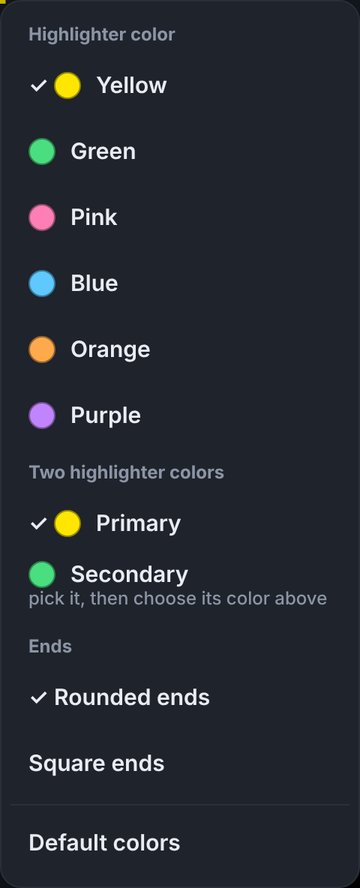
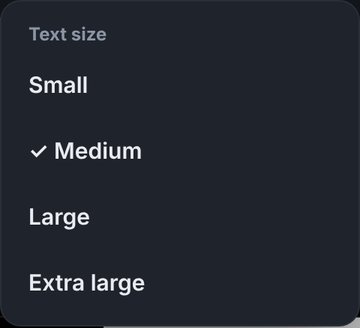
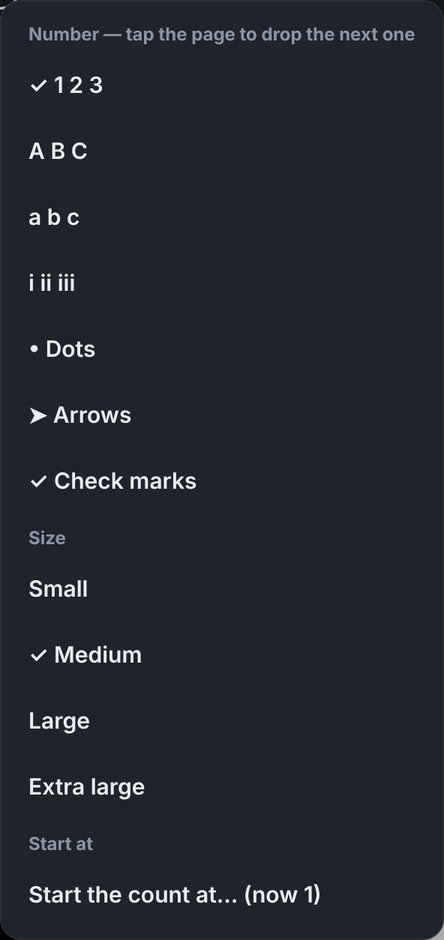
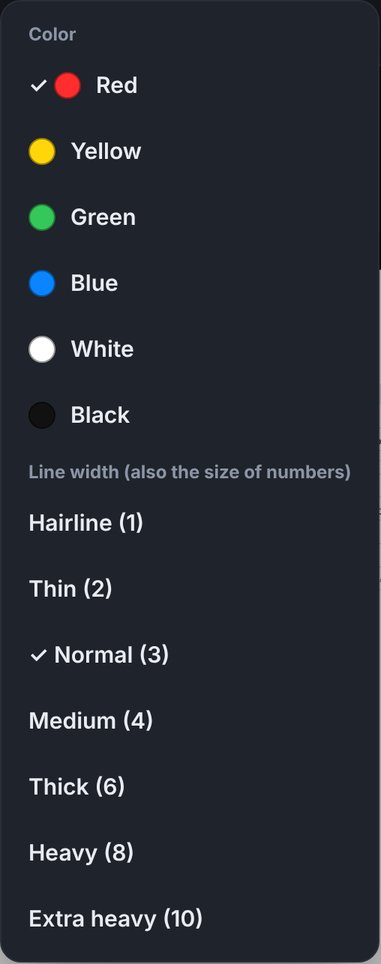
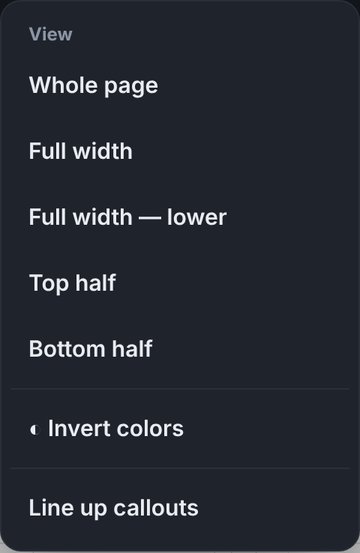
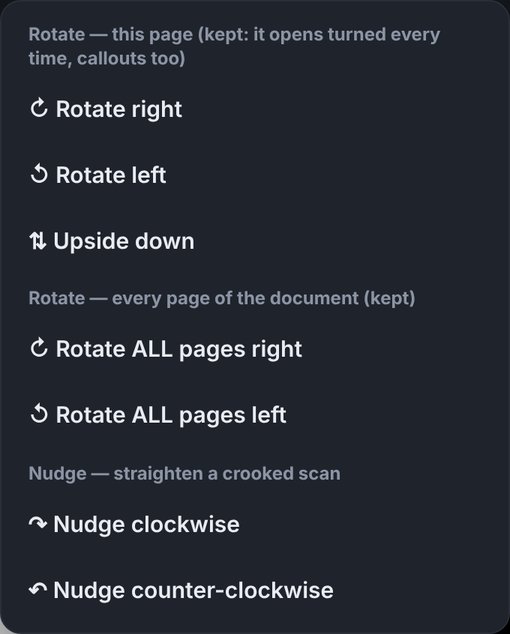
Tap a tool, then draw on the page. A tool with a small triangle in its corner has options — press and hold it.
Everything stays sharp at any zoom and appears on the Display as you work when you’re LIVE.
Take a mark off:double-tap it — with any tool. Or use Erase last, Erase all and undo on the bottom bar.
↑ Contents
Mark exhibits
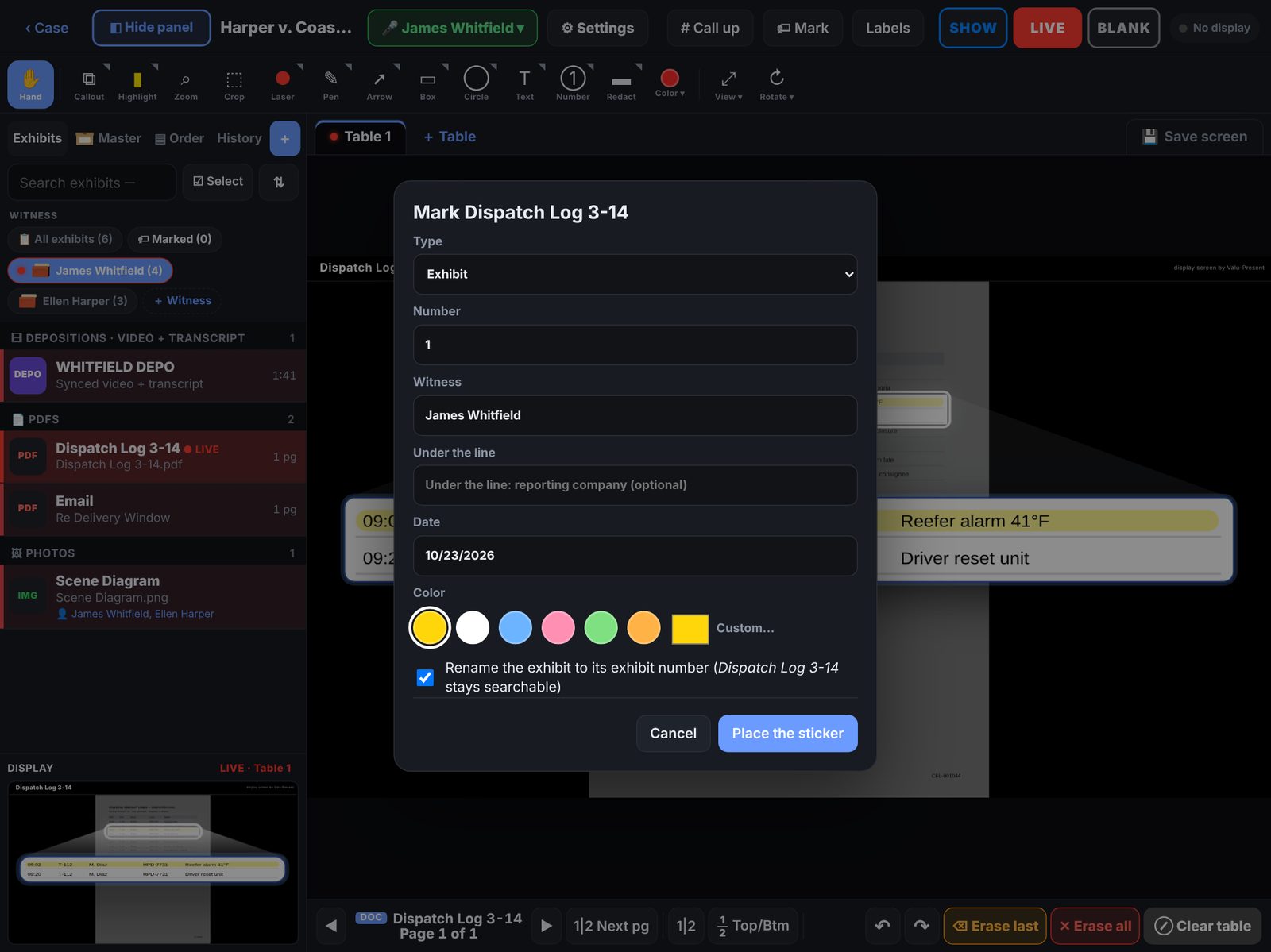
- Load the document on the Counsel Table and tap 🏷 Mark.
- Pick the type (Exhibit, Plaintiff’s, Defendant’s, Joint… or your own), check the number, the witness, the date and the color.
- Tap Place the sticker, tap the page where it goes, drag to move or a corner to resize, then ✓ Confirm.
- Numbering: the next number is always the highest one still marked, plus one. Mark 2, unmark it, and 2 is next again.
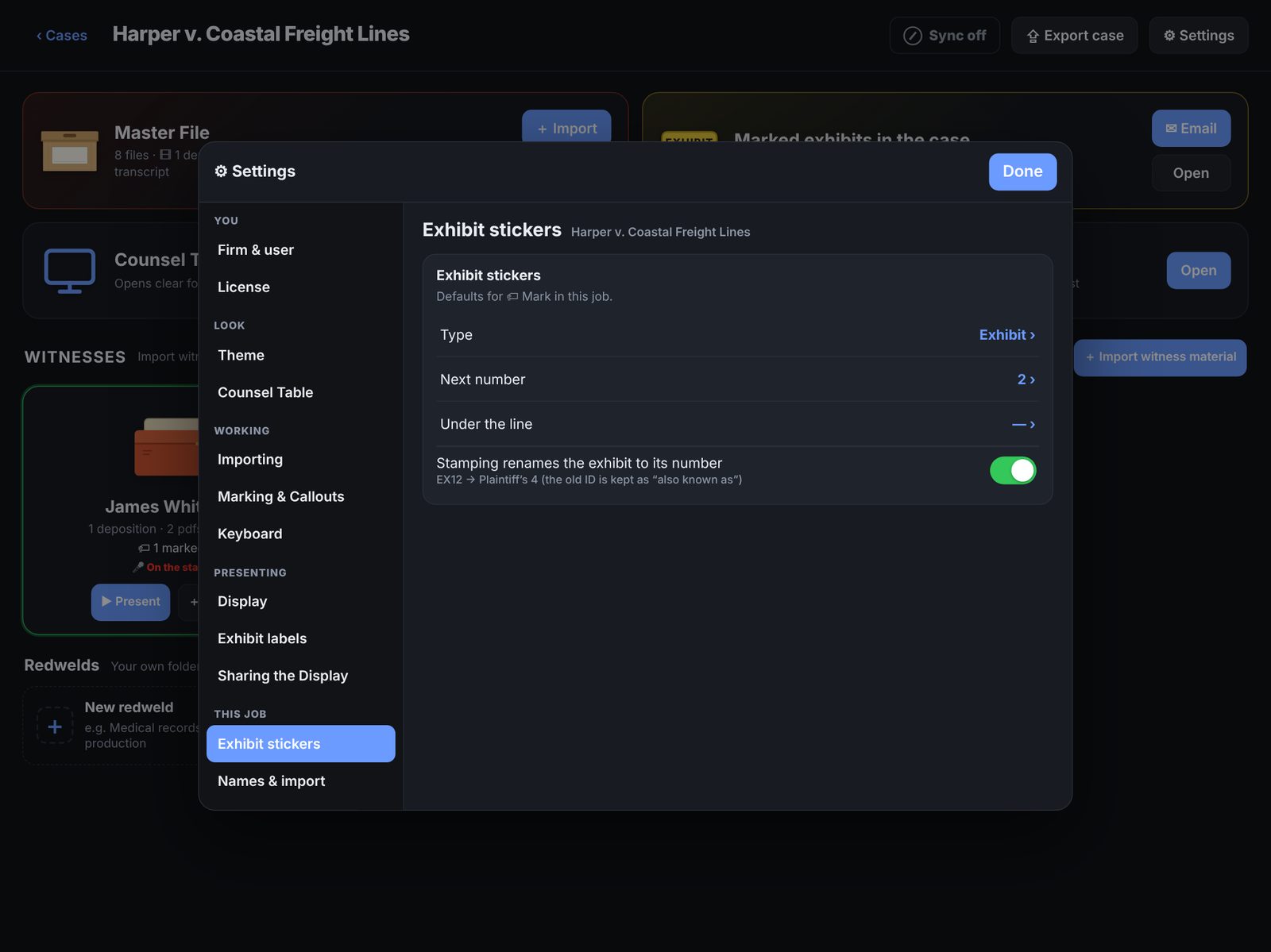
- Renaming: by default the file takes its exhibit number as its name (the original stays searchable). Turn this off in Settings ▸ Marking exhibits.
- Unmark: press and hold the exhibit ▸ Unmark — the sticker comes off and the original name comes back.
- Admitted: press and hold ▸ status (Offered, Admitted, Excluded…). The Admitted chip filters the list.
- Every marked exhibit also lands in Marked exhibits on the case page — by witness and by day.
↑ Contents
Saved screens
Set up a table the night before — the page, zoom, highlights and callouts — and tap 💾 Save screen.
In court, tap Saved screens and pick it: it comes back exactly as you left it. If you change a saved
screen, the button asks whether to update it or save as new.
↑ Contents
Play depositions & clips
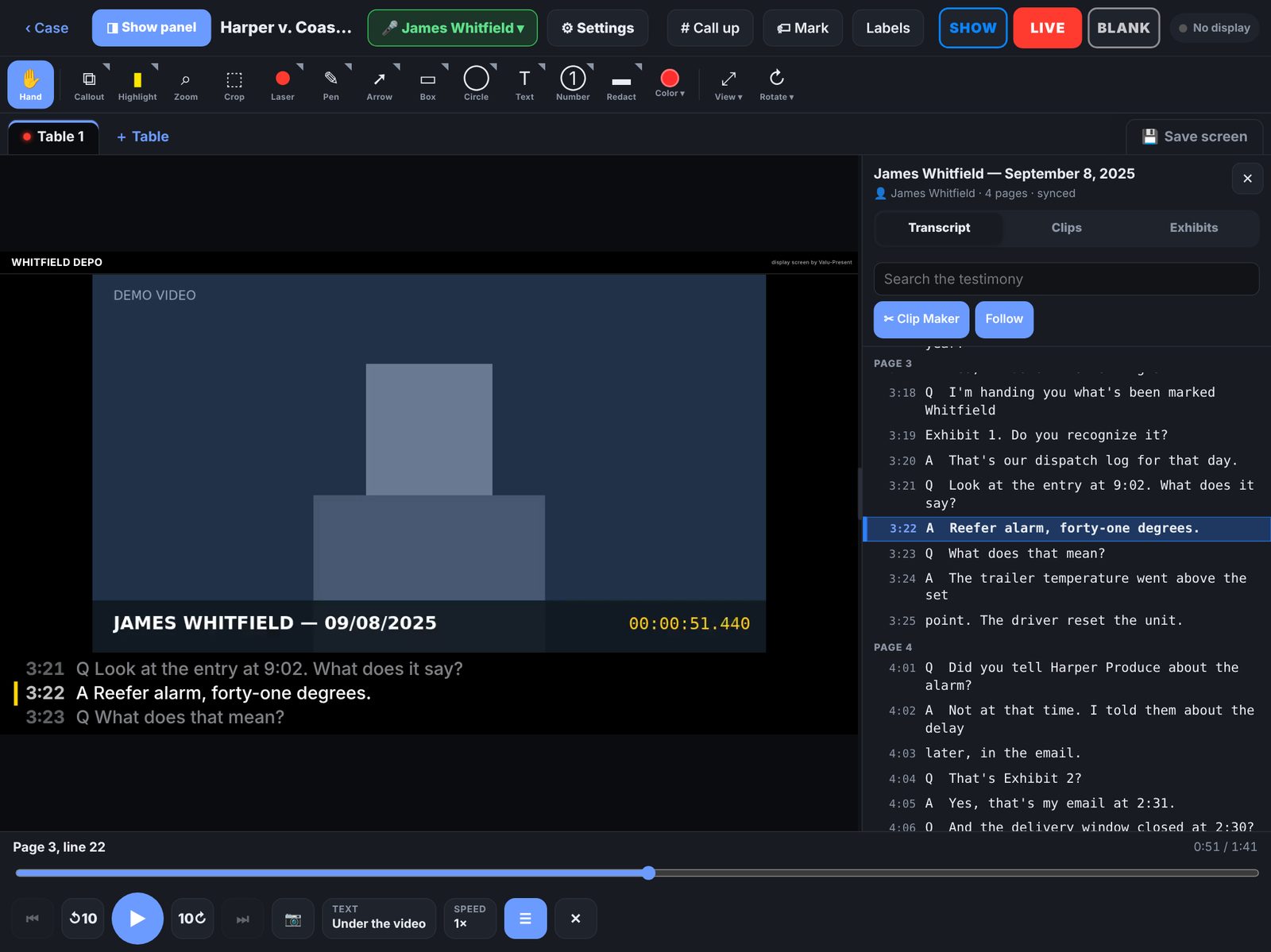
- Tap a deposition (DEPO) in the list. The video loads with the transcript beside it.
- Tap any line in the transcript to jump the video there; the line being spoken is highlighted and followed.
- Use Search the testimony to find a word, and ✂ Clip Maker to make clips from page:line ranges.
- TEXT chooses how the words appear: Under the video, Over the video (captions on the picture), Words only, or Video only.
↑ Contents
Read & search a transcript
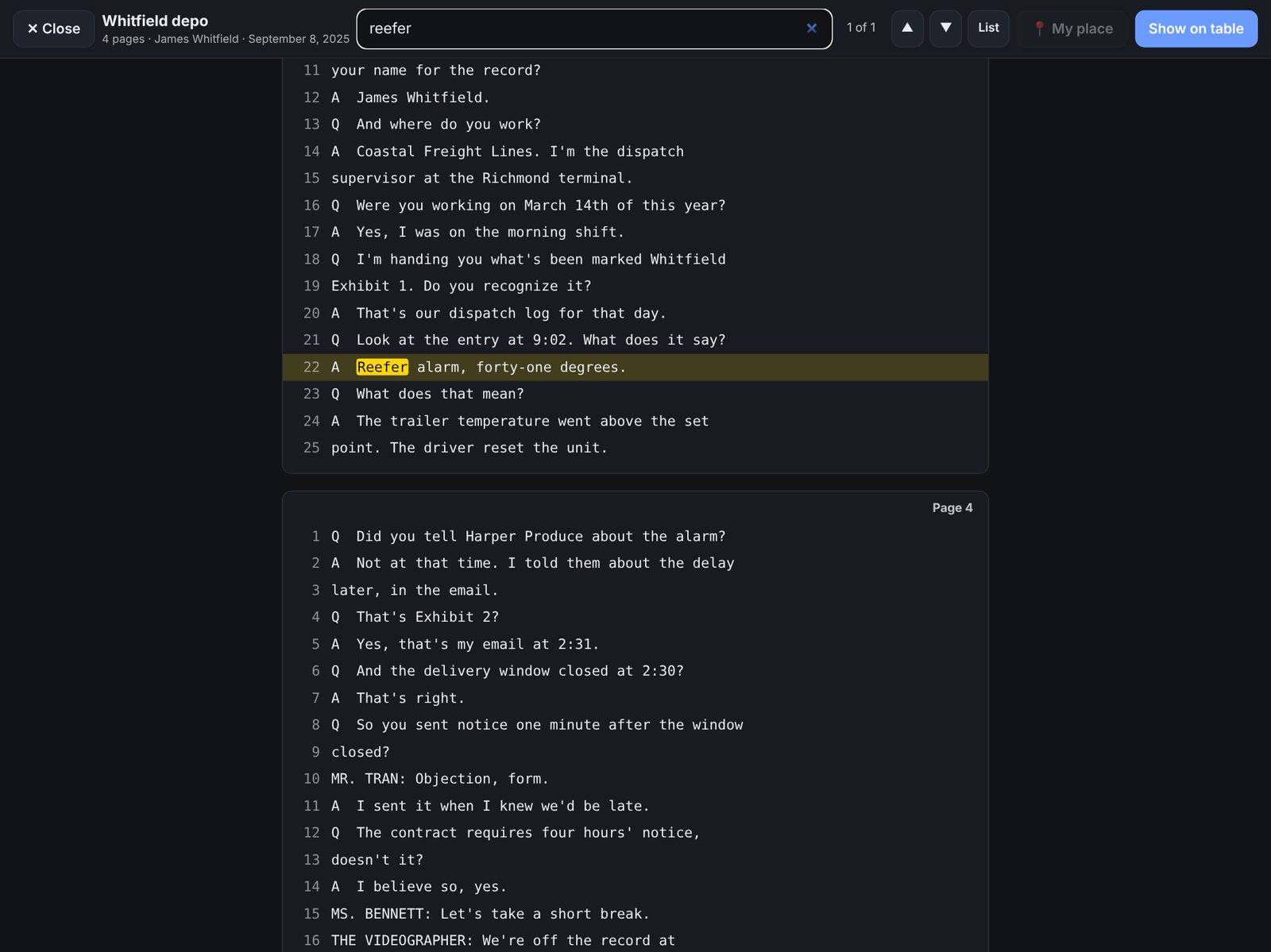
Open any ASCII transcript (from the Master File, or a deposition’s transcript) to read it page by page.
- Type in the search box — every hit is highlighted; ▲ ▼ step through them, List shows them all.
- Tap a line to mark “where I am” — 📍 My place brings you back to it.
- Show on table puts the transcript page on the Counsel Table.
↑ Contents
Connect a TV (HDMI / AirPlay)
- HDMI: plug a USB-C to HDMI adapter into the iPad and the TV. The TV becomes the Display.
- AirPlay: Control Center ▸ Screen Mirroring ▸ pick the TV. With Valu-Present open, the TV shows the Display (not the iPad’s screen).
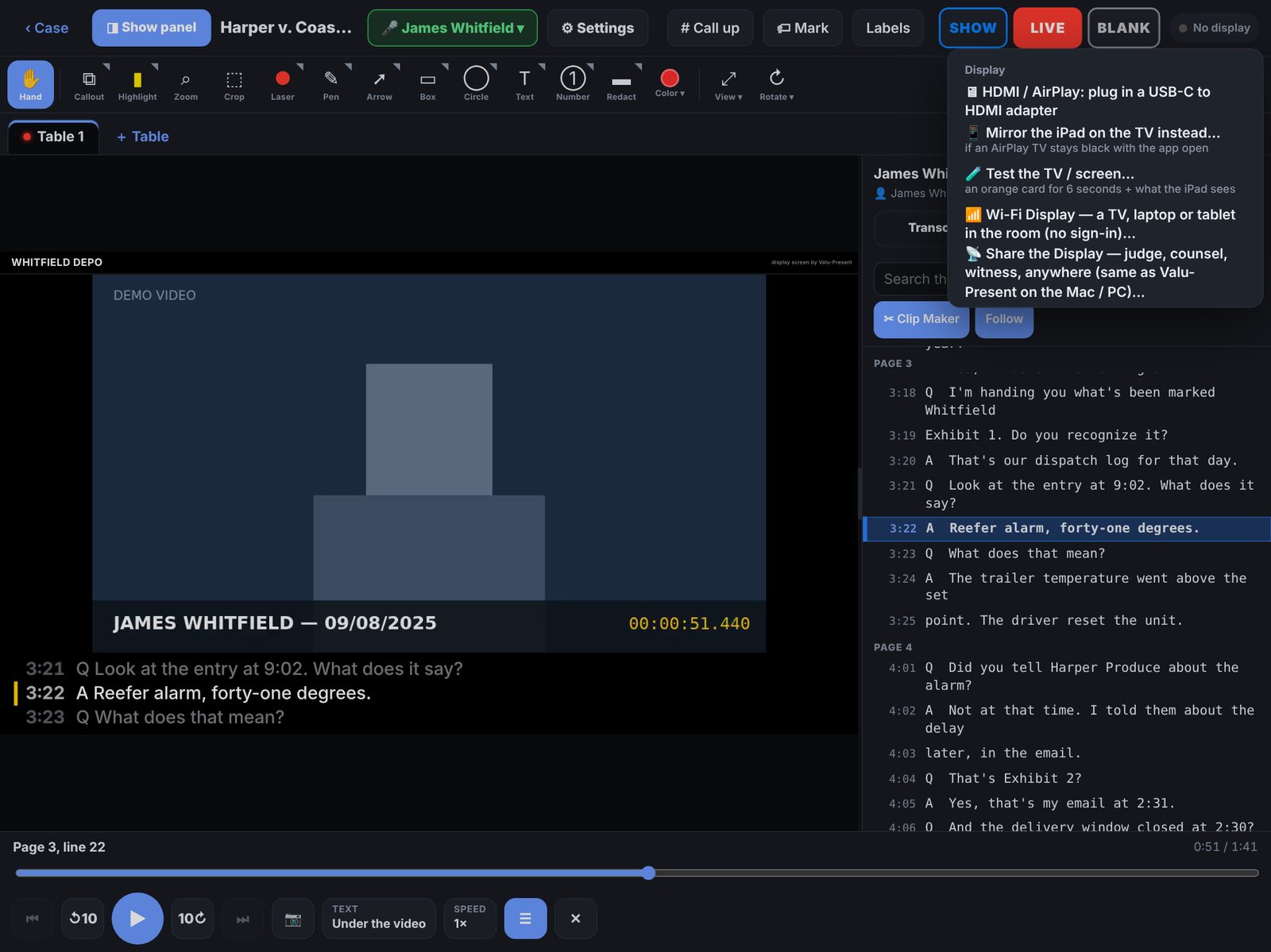
- Go LIVE or SHOW to put something up. The Display pill at the top right shows what’s connected — tap it for the Display menu.
- 🧪 Test the TV: puts an orange card on the TV for 6 seconds and shows what the iPad sees — useful before court.
- 📱 Mirror the iPad on the TV instead: if an AirPlay TV stays black with the app open, this lets the TV mirror the iPad screen.
- If the TV shows your whole iPad screen with HDMI, turn Stage Manager off in Control Center.
↑ Contents
Wi-Fi Display
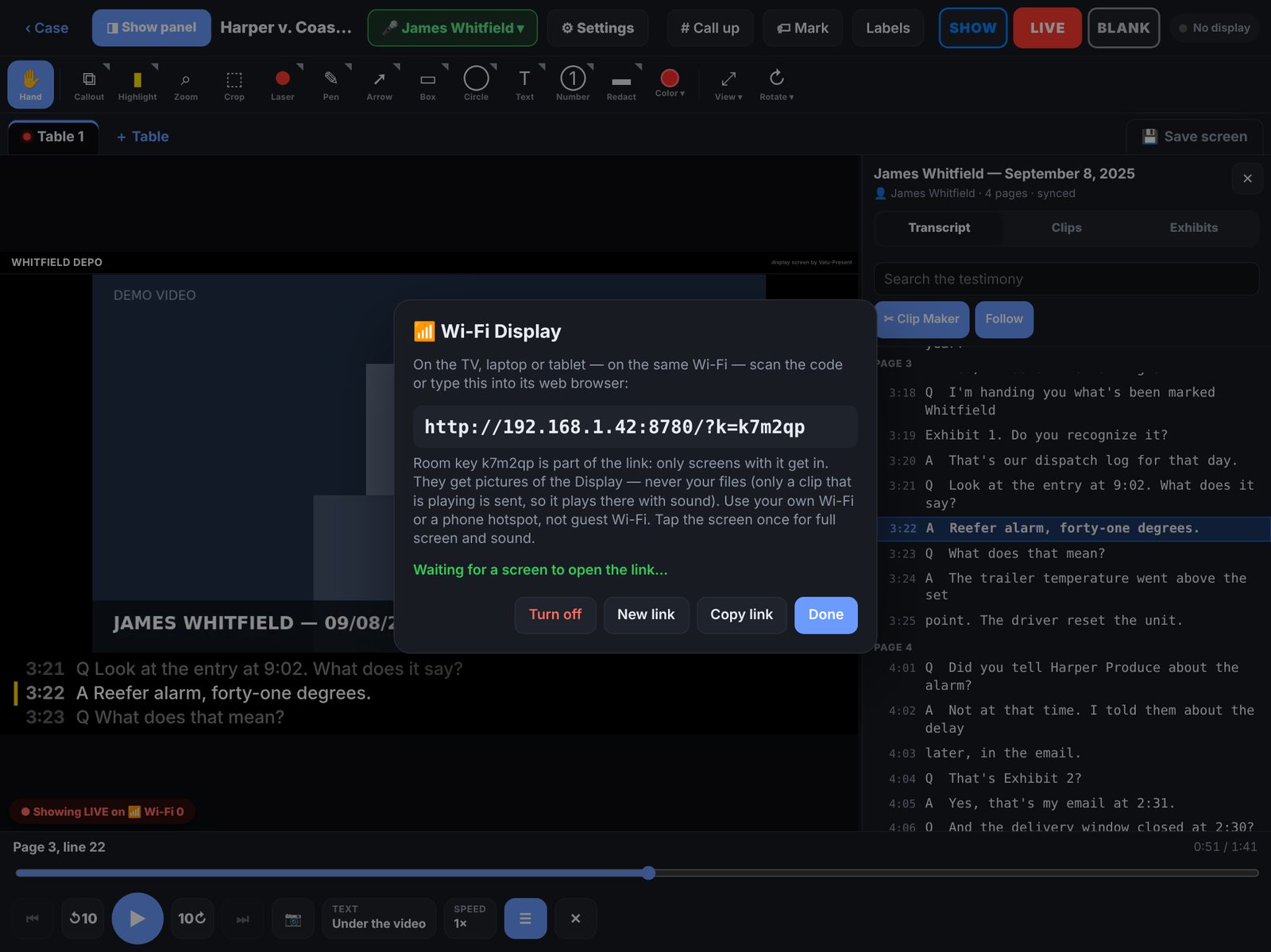
Show the Display on any TV, laptop or tablet in the room — in its web browser, nothing to install.
- Tap the Display pill ▸ 📶 Wi-Fi Display.
- On the other screen, on the same Wi-Fi, scan the QR code or type the link shown.
- Tap that screen once for full screen and sound.
Pictures only.Wi-Fi screens receive pictures of the Display — never your case files (a clip that is playing is sent so it plays there with sound). Use your own Wi-Fi or a phone hotspot rather than guest Wi-Fi.
↑ Contents
Share the Display remotely
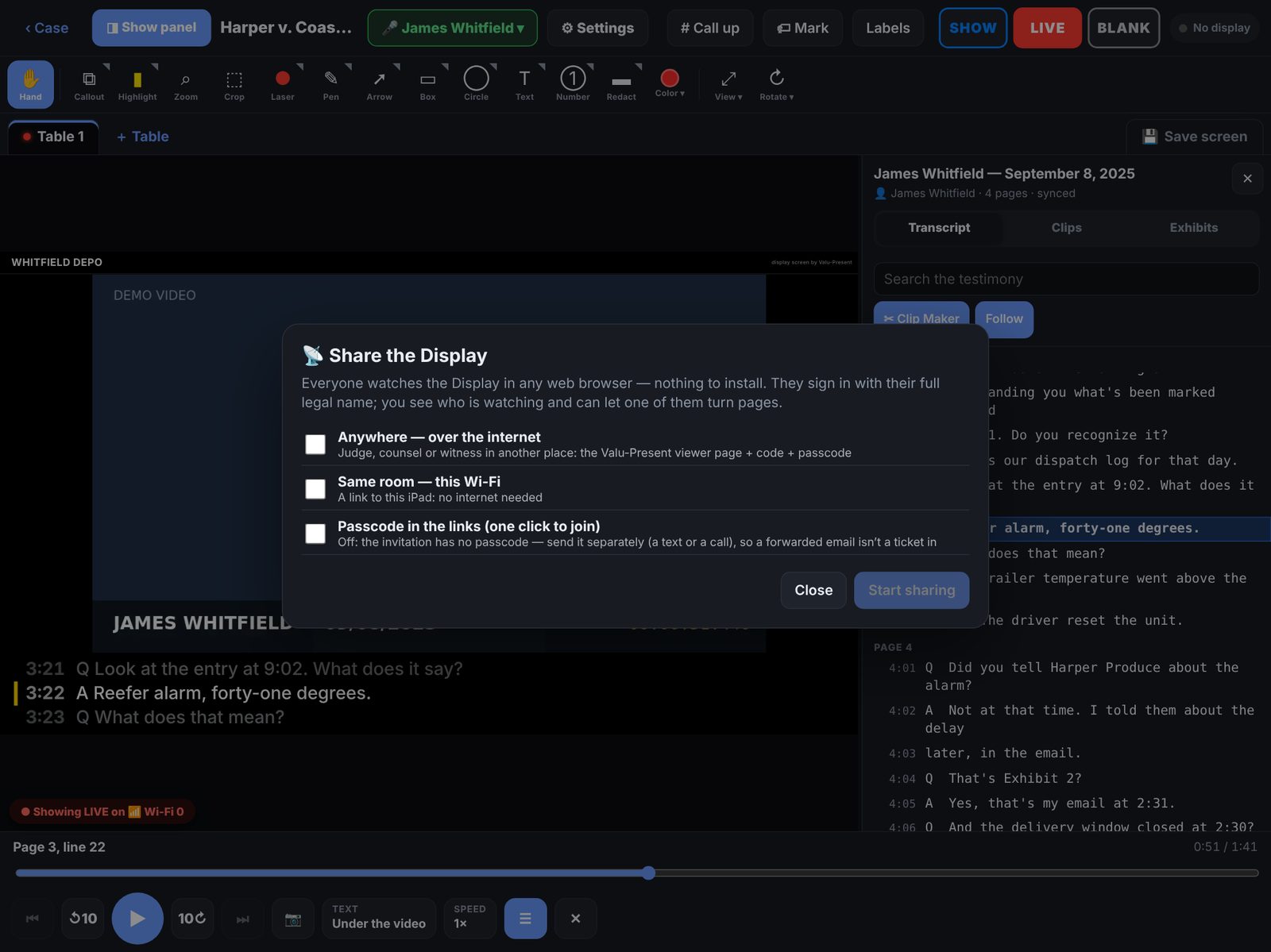
Judge, counsel or a witness somewhere else watch the Display in any web browser — the same viewer page and invitation as Valu-Present on the Mac / PC.
- Tap the Display pill ▸ 📡 Share the Display.
- Tick Anywhere — over the internet and/or Same room — this Wi-Fi. (Everything starts unticked — you choose.)
- Tap Start sharing, then Copy join link, Copy invitation, Email or show the QR code.
- Viewers sign in with their full name. You see who is watching, can give one of them control to turn pages, and can remove anyone.
Passcode in the link?Off by default: the invitation has no passcode, so a forwarded email isn’t a ticket in — send the passcode separately. Turn it on for one-click joining.
↑ Contents
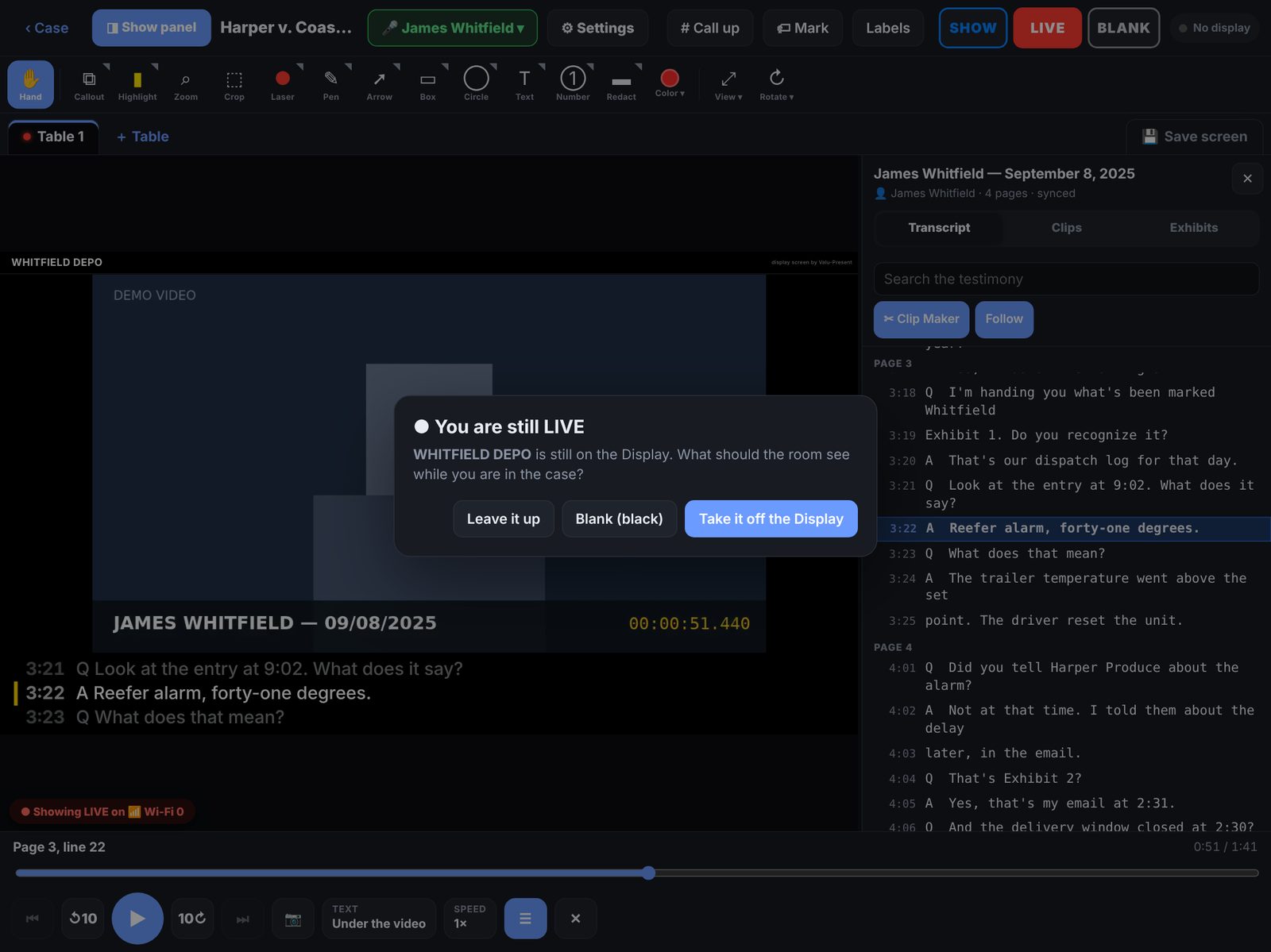
Leaving the table while live
If you tap ‹ Case while something is still on a TV or being shared, the app stops and asks what the room should see:
Leave it up, Blank (black), or Take it off the Display.
↑ Contents
Sync two iPads with iCloud
Sync keeps a case the same on two (or more) iPads — a second chair, a paralegal, or your backup iPad.
It uses your own iCloud Drive; nothing goes to any other server.
Before you start
- Both iPads signed in to the same Apple ID.
- iCloud Drive on: Settings app ▸ your name ▸ iCloud ▸ iCloud Drive.
- Enough iCloud storage for the case (videos are large).
Turn sync on for a case
- Open the case. On the case page tap the ⊘ Sync off button at the top — sync turns on for this case.
- The case uploads — the button shows progress, then Synced · just now.
- On the other iPad, on the Cases screen tap ☁ From iCloud and pick the case. It downloads and opens.
What syncs
Imports, renames, exhibit stickers and numbers, witnesses and redwelds, where files are filed, status (Admitted…),
rotations, saved screens and synced depositions. Work done on both iPads is merged item by item — one iPad
never wipes out the other’s work. Each iPad keeps its own Counsel Table and what’s on its Display.
The Sync button
- Synced · 3 min ago — up to date. Tap it for Sync now, What to sync… (videos and audio can stay on each iPad to save iCloud space), iCloud details, Undo the last iCloud update, or Stop syncing this case.
- Uploading… / Downloading… — in progress. Large imports finish uploading before the other iPad sees them; the app waits until an import is done before syncing.
- ⏸ Sync paused — iCloud sync is turned off on this iPad in Settings.
- ⊘ Sync off — this case isn’t synced.
Turn sync off
- For one case: tap its Sync button ▸ Stop syncing this case… The case stays on this iPad.
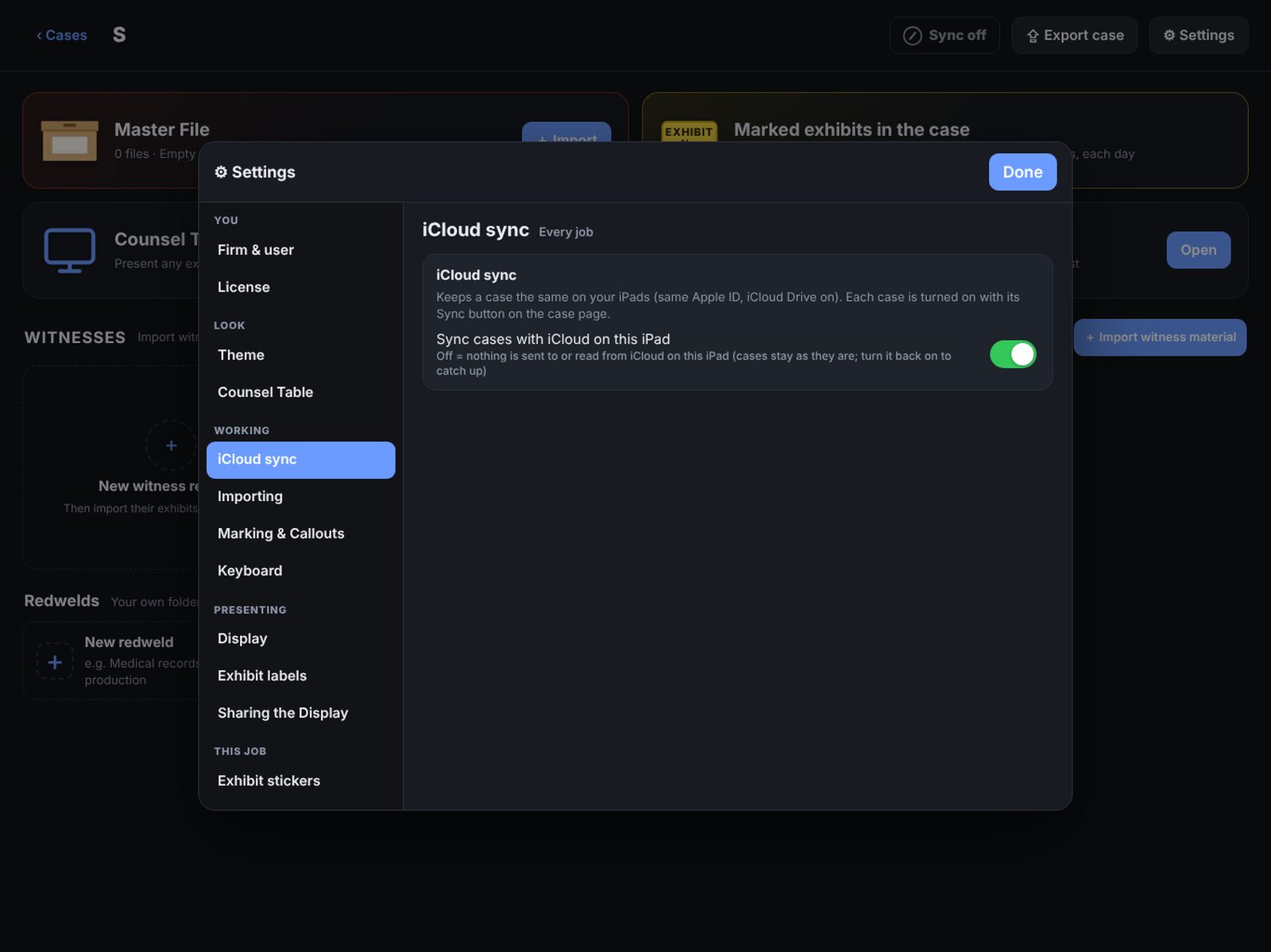
- For this whole iPad: app Settings ▸ iCloud sync ▸ turn off “Sync cases with iCloud on this iPad”. Nothing is sent or read; turn it back on and it catches up.
Files left behind?If an import on the other iPad was interrupted, the app offers to bring the missing files back — or tap Cancel — don’t ask again.
↑ Contents
Export, exhibit list & binder
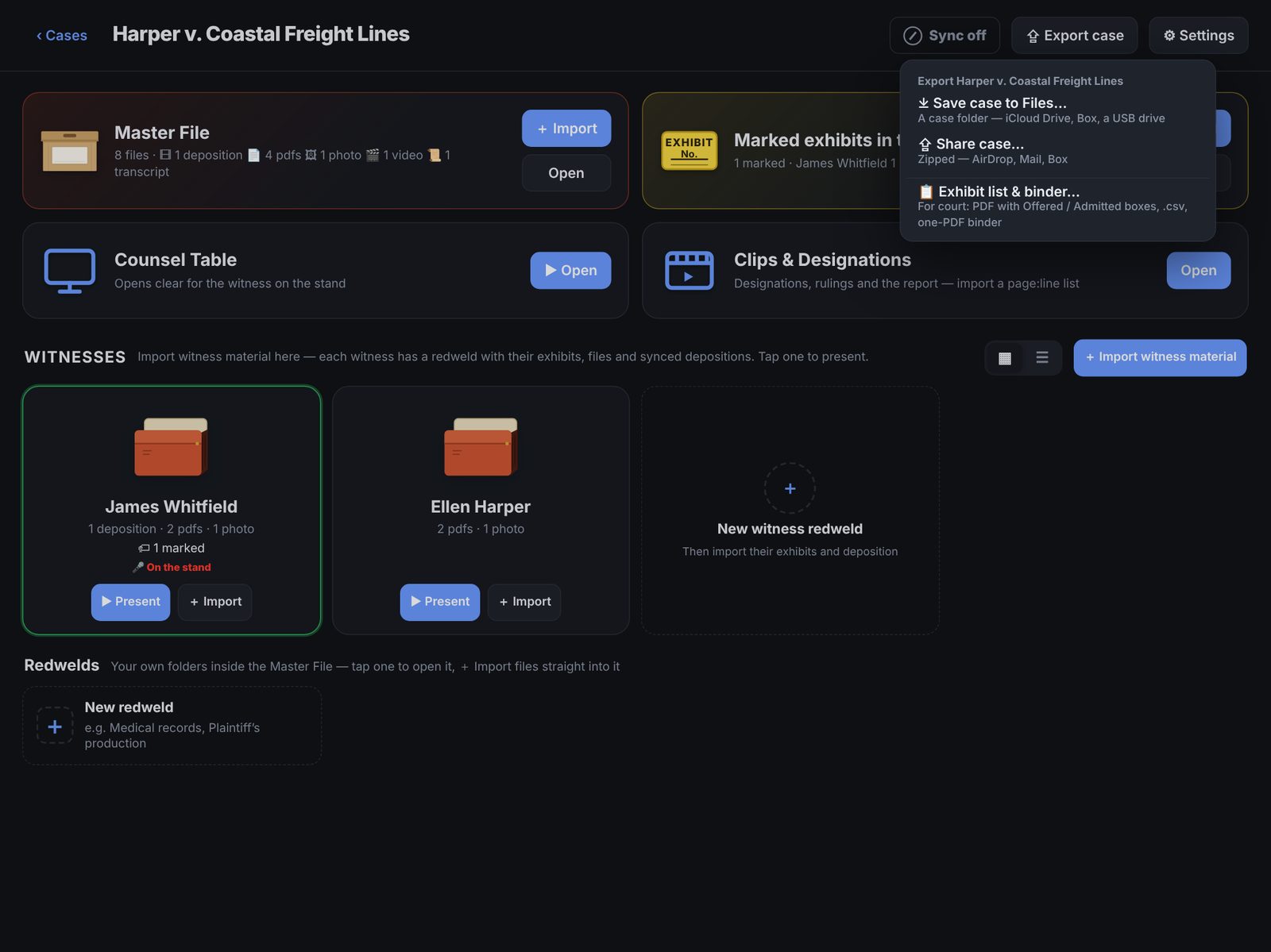
On the case page tap Export case:
- Save case to Files — a case folder to iCloud Drive, Box or a USB drive.
- Share case — zipped, for AirDrop, Mail or Box.
- Exhibit list & binder — for court: a PDF list with Offered / Admitted boxes, a .csv, and a one-PDF binder of the stamped exhibits.
From Marked exhibits you can also email or export stamped copies plus a report.
↑ Contents
Settings
- Firm & user — your name for reports and the clear screen.
- Look — Lab Dark, Lab Light or follow the iPad; accent color; tool names.
- iCloud sync — pause or resume syncing on this iPad.
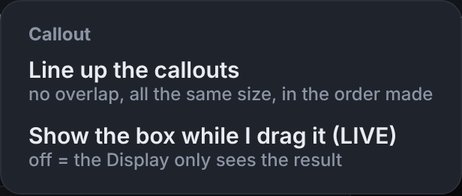
- Marking & Callouts — turn auto-renaming to the exhibit number on or off, highlighter, pen and callout defaults.
- Presenting — Go LIVE when a screen connects, Display labels, sharing.
- This job — exhibit sticker defaults, file-name splitting, clear screen.
↑ Contents
Troubleshooting
- AirPlay TV is black. Run 🧪 Test the TV. If the orange card doesn’t show, stop Screen Mirroring and start it again from Control Center. Still black? Use 📱 Mirror the iPad on the TV instead, or an HDMI adapter.
- The TV shows my whole iPad. Turn Stage Manager off in Control Center.
- A Wi-Fi screen can’t connect. Both must be on the same Wi-Fi; guest networks often block devices from seeing each other — use a phone hotspot.
- The other iPad doesn’t see a change. Check both are on the same Apple ID with iCloud Drive on, and the Sync button says Synced.
- The laser lags for remote viewers. Internet sharing adds a little delay; HDMI and AirPlay are instant.
Questions or feedback: holmstockd@gmail.com
↑ Contents